
How to view the full activity timeline of a submission
Updated 7 months ago
Browse All
Open the event log to see every action taken on a submission, including email delivery, form views, and field completion timestamps.
Prerequisites
- A submission that has been sent to at least one recipient
Steps
Open the submission
Go to Submissions. Click View on the submission you want to inspect.
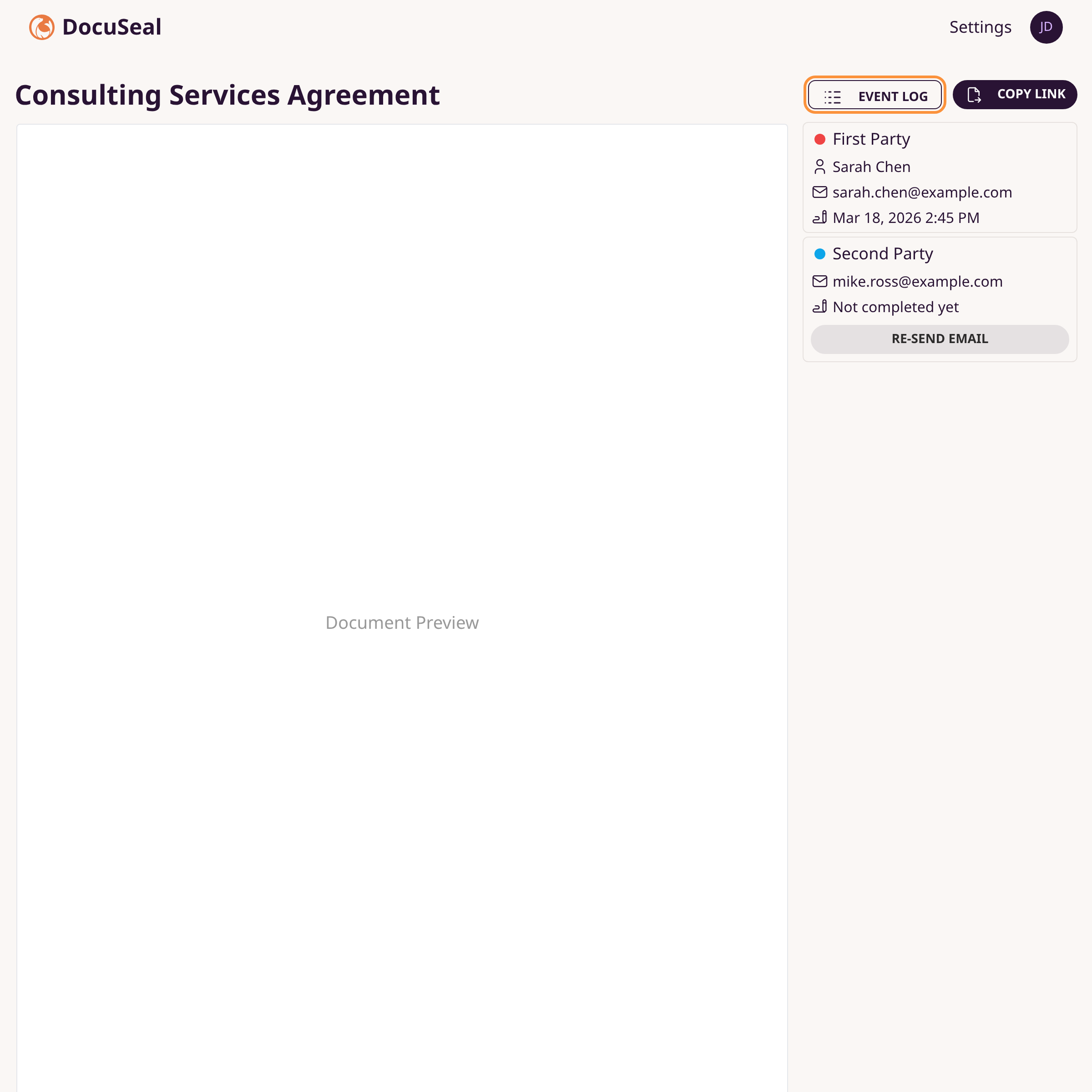
Click Event Log
In the top-right toolbar, click Event Log. A modal opens with a chronological timeline of all events.
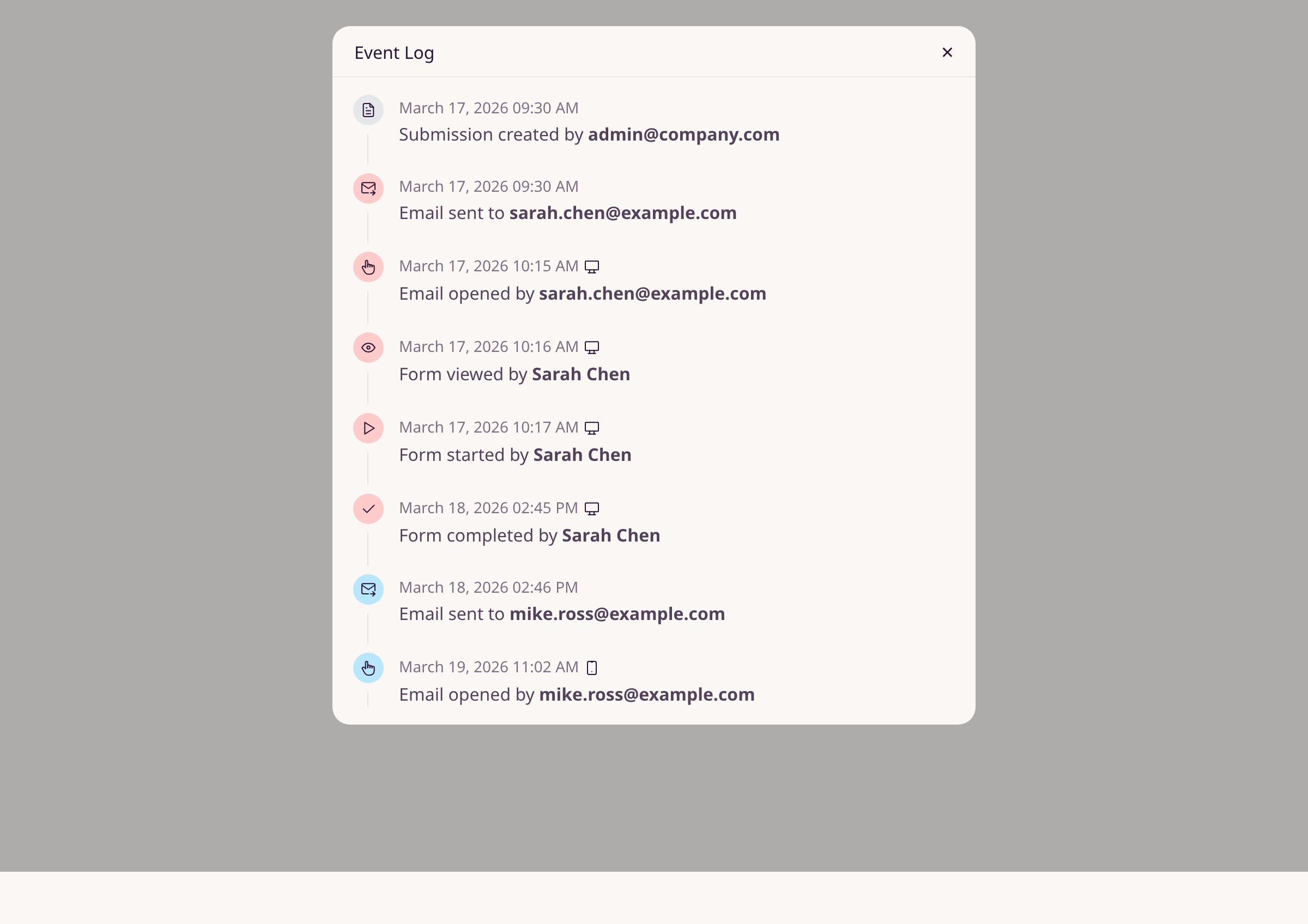
Review the timeline
Each entry shows a timestamp, icon, and description. Events are color-coded per signer. A device icon (desktop, mobile, tablet) appears next to entries that record the signer's device.
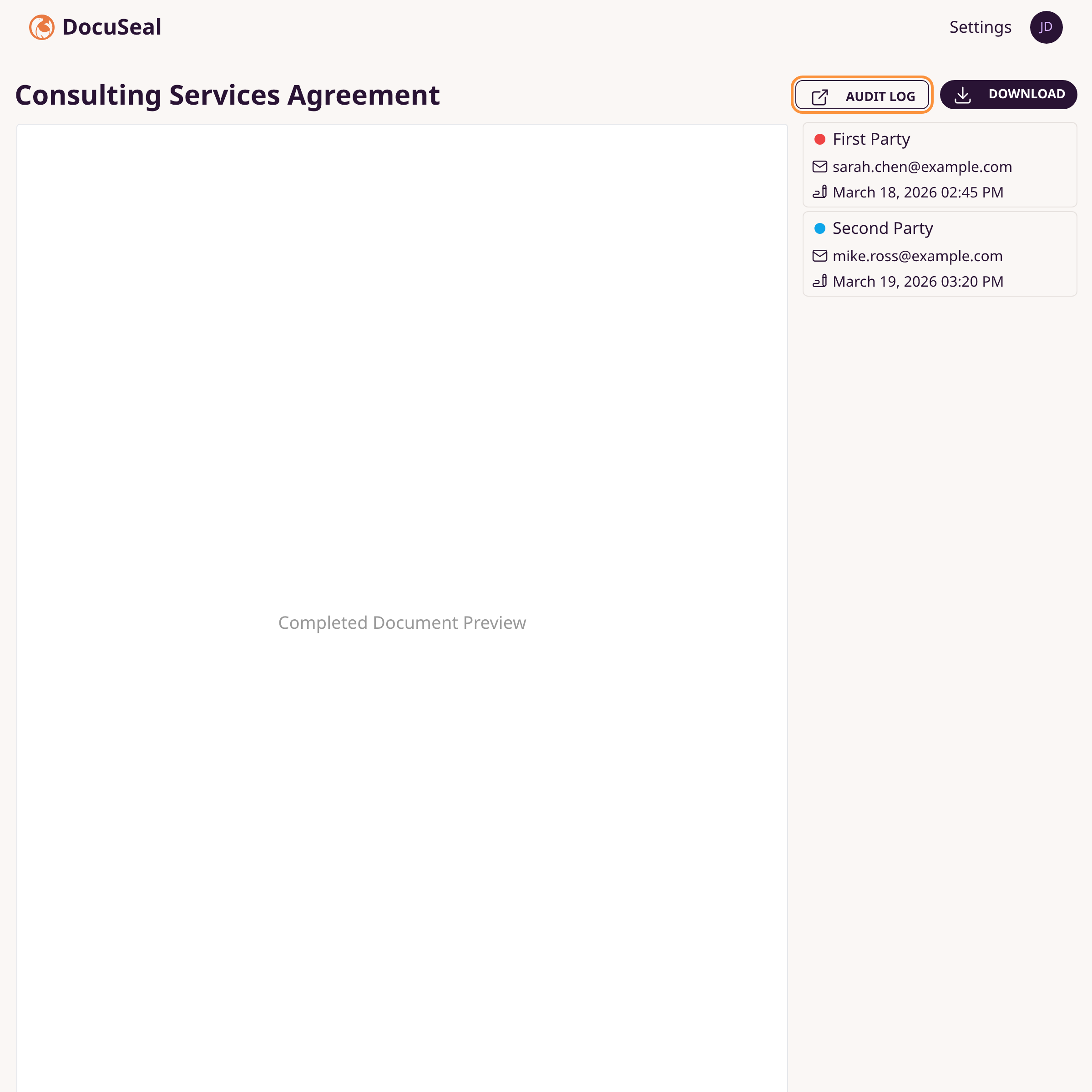
View the Audit Log PDF (completed submissions)
Once all parties complete the form, the Event Log button is replaced by Audit Log. Click it to open the cryptographic audit trail PDF in a new tab.
Tips
- The timeline tracks: email sent, email opened, form viewed, form started, form completed, form declined, reminders sent, and 2FA verification events.
- Each signer's events are shown in a distinct color matching their role assignment.
- The Audit Log PDF is generated automatically when all signers complete the submission. It includes IP addresses, timestamps, and user-agent details.
- On mobile, tap the Signers button at the bottom-right to see signer status, then use the top toolbar for the event log.
Summary
Open any submission and click Event Log in the toolbar to see the full activity timeline. After all parties sign, click Audit Log to download the official audit trail PDF.
Was this article helpful?
Built with supportpages.io — an AI documentation generator.
Have a question?
Search our articles, or ask and get an answer straight away.