
How to send a document to multiple signers with a specific signing order
Updated 7 months ago
Browse All
Add multiple recipients to a submission and control whether they sign sequentially or simultaneously.
Prerequisites
- A template with two or more signer roles already configured
- Email addresses for each signer
Steps
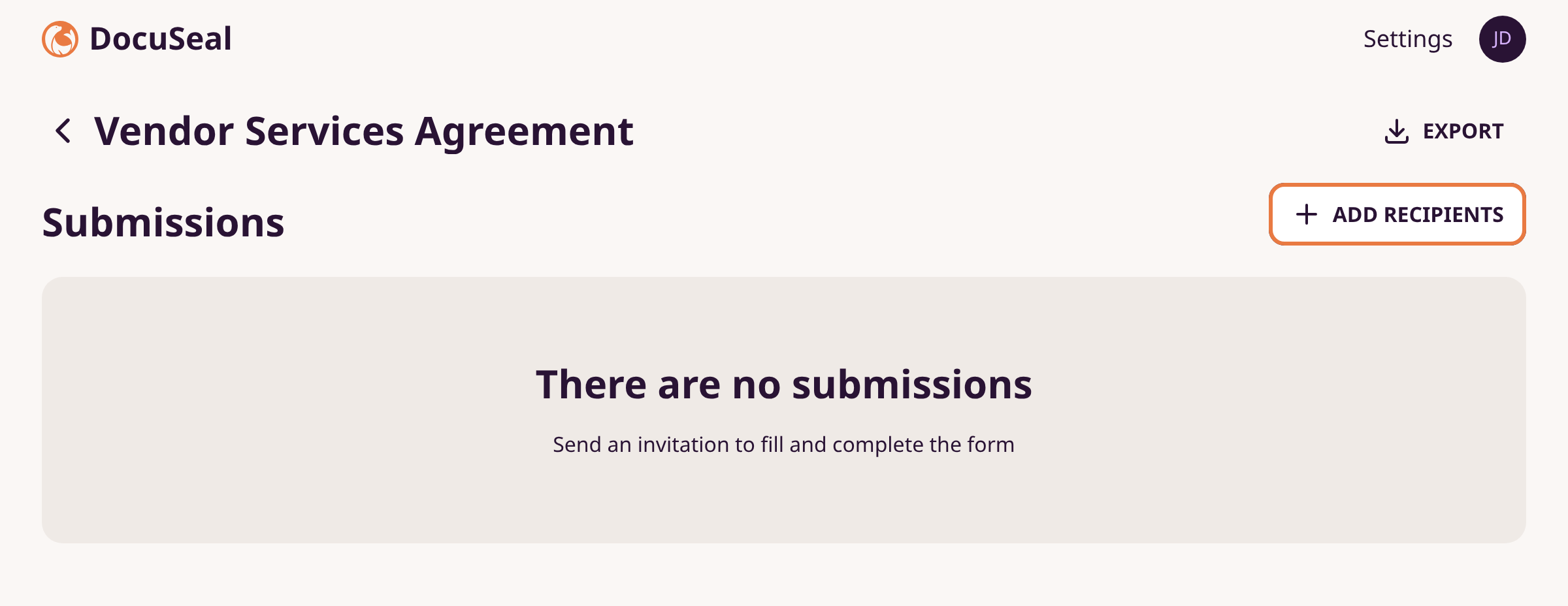
Open the template and click Add Recipients
Go to Document Templates. Click your template. Click + Add Recipients above the Submissions list.
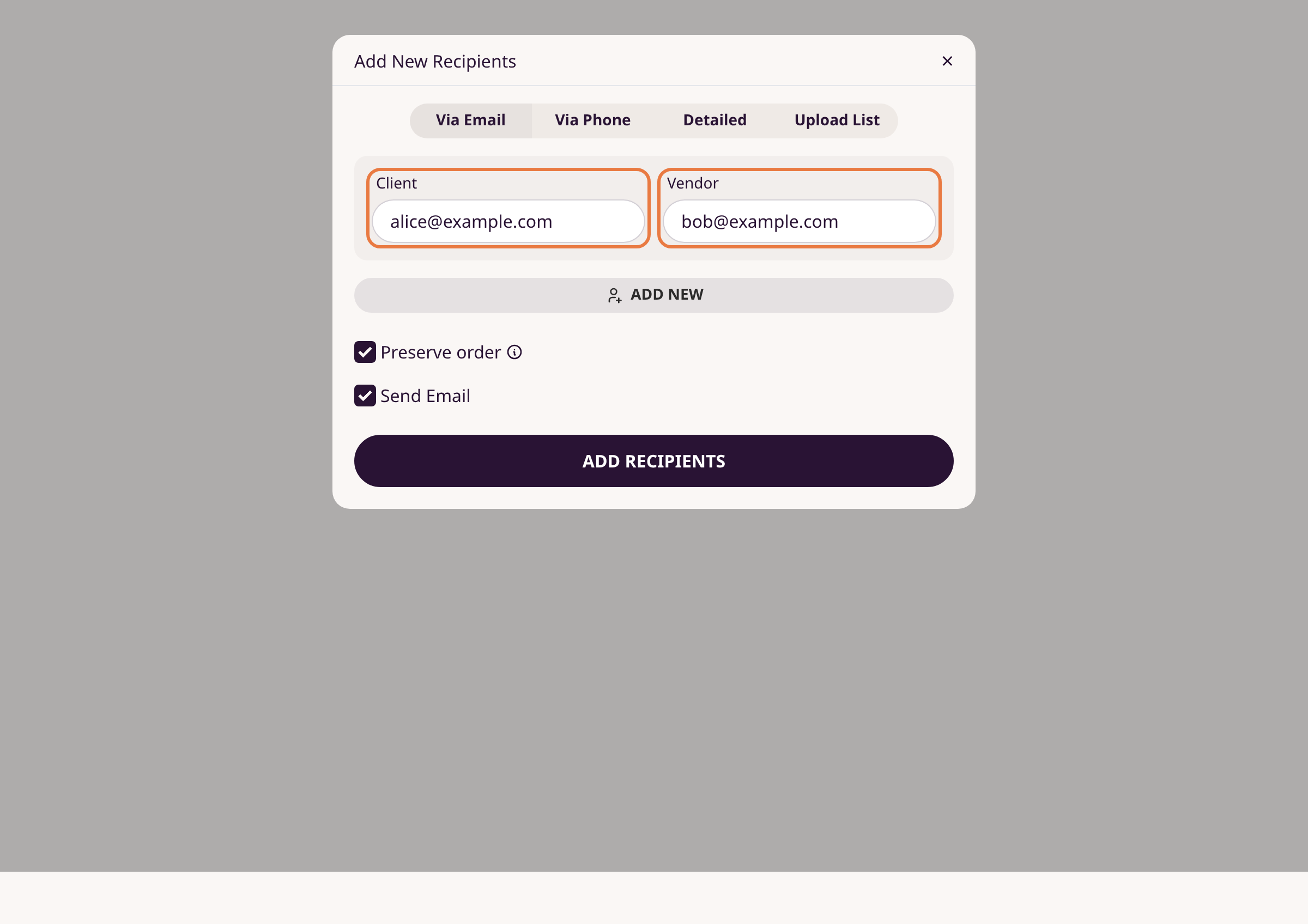
Enter email addresses for each role
In the modal, each signer role (e.g., Client, Vendor) has its own email field. Enter the email address for each role. Click Add New to create additional submission sets.
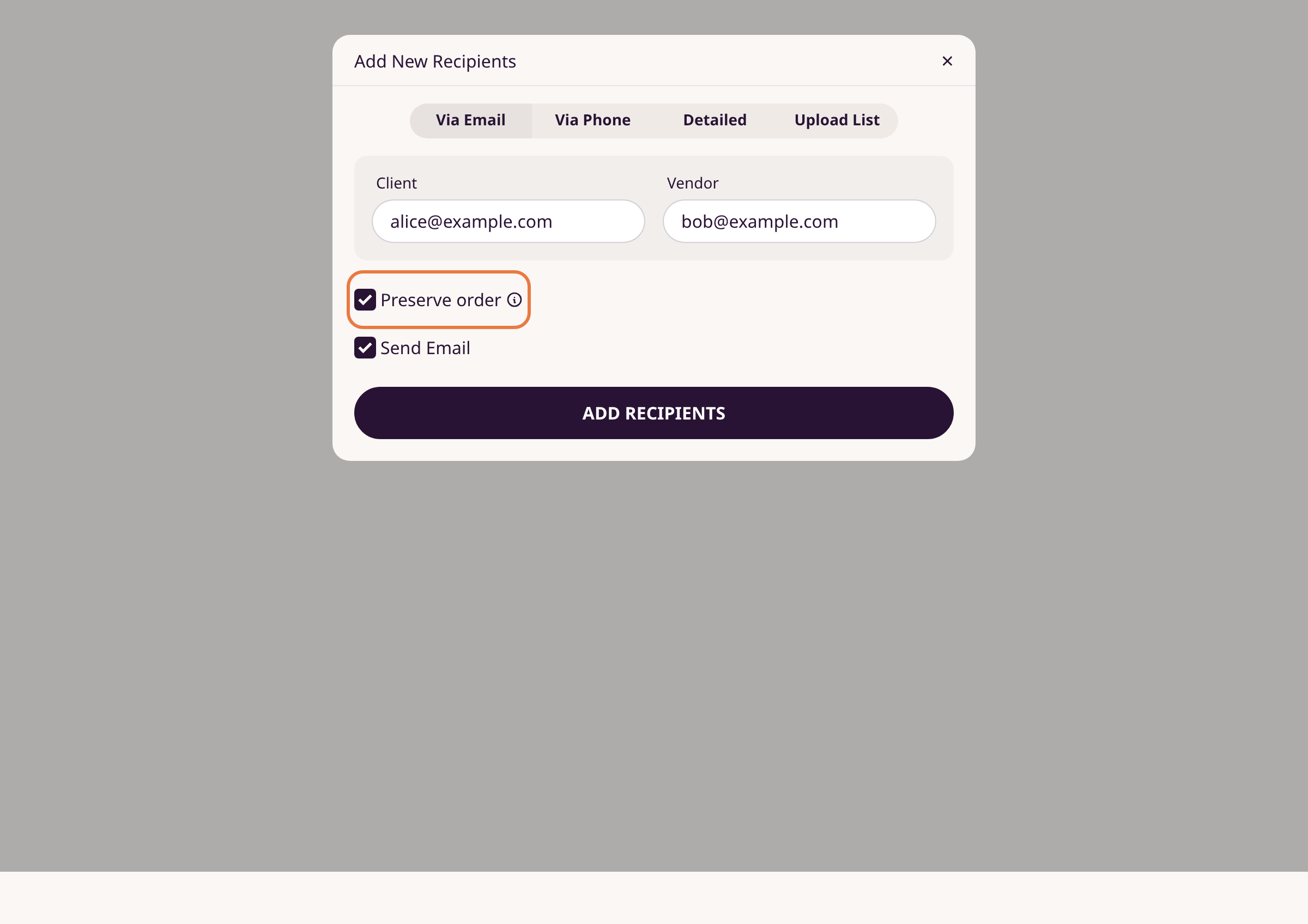
Set the signing order
Check Preserve order to require signers to complete the form sequentially — the second signer receives their invitation only after the first finishes. Uncheck it to send all invitations at once.
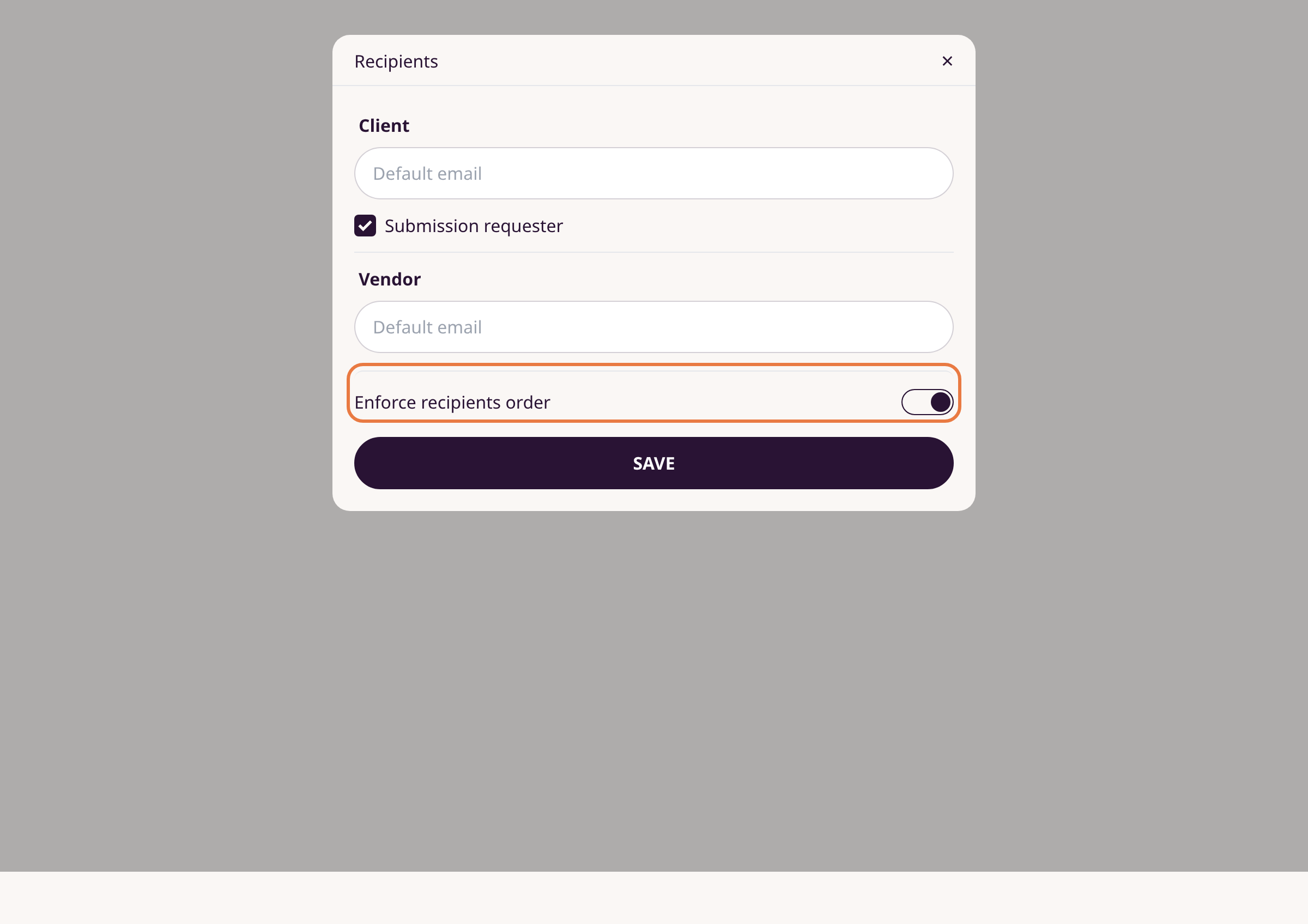
Enforce order permanently in template settings
To always enforce sequential signing for a template: open the template, click the settings icon next to Recipients, and toggle Enforce recipients order on. This removes the per-submission checkbox and locks the order for all future submissions.
Send the submission
Confirm Send Email is checked. Click Add Recipients. Invitations go out according to your order setting.
Tips
- When order is preserved, later signers see an "Awaiting completion by the other party" message until it is their turn.
- For templates with three or more roles, click Edit order in the Recipients settings to rearrange the signing sequence.
- Use the Detailed tab in the Add Recipients modal to include names and phone numbers alongside emails.
Summary
Enter emails for each signer role, check or uncheck Preserve order, and click Add Recipients. DocuSeal handles the rest — sequentially or all at once.
Was this article helpful?
Maintained by supportpages.io, a self-updating help centre for SaaS teams.
Have a question?
Search our articles, or ask and get an answer straight away.