
How to upload a PDF and create your first template
Updated 7 months ago
Browse All
Upload a PDF document and open it in the template builder to start adding signature and form fields.
Prerequisites
- A DocuSeal account with permission to create templates
- A PDF file on your computer
Steps
Open the new template dialog
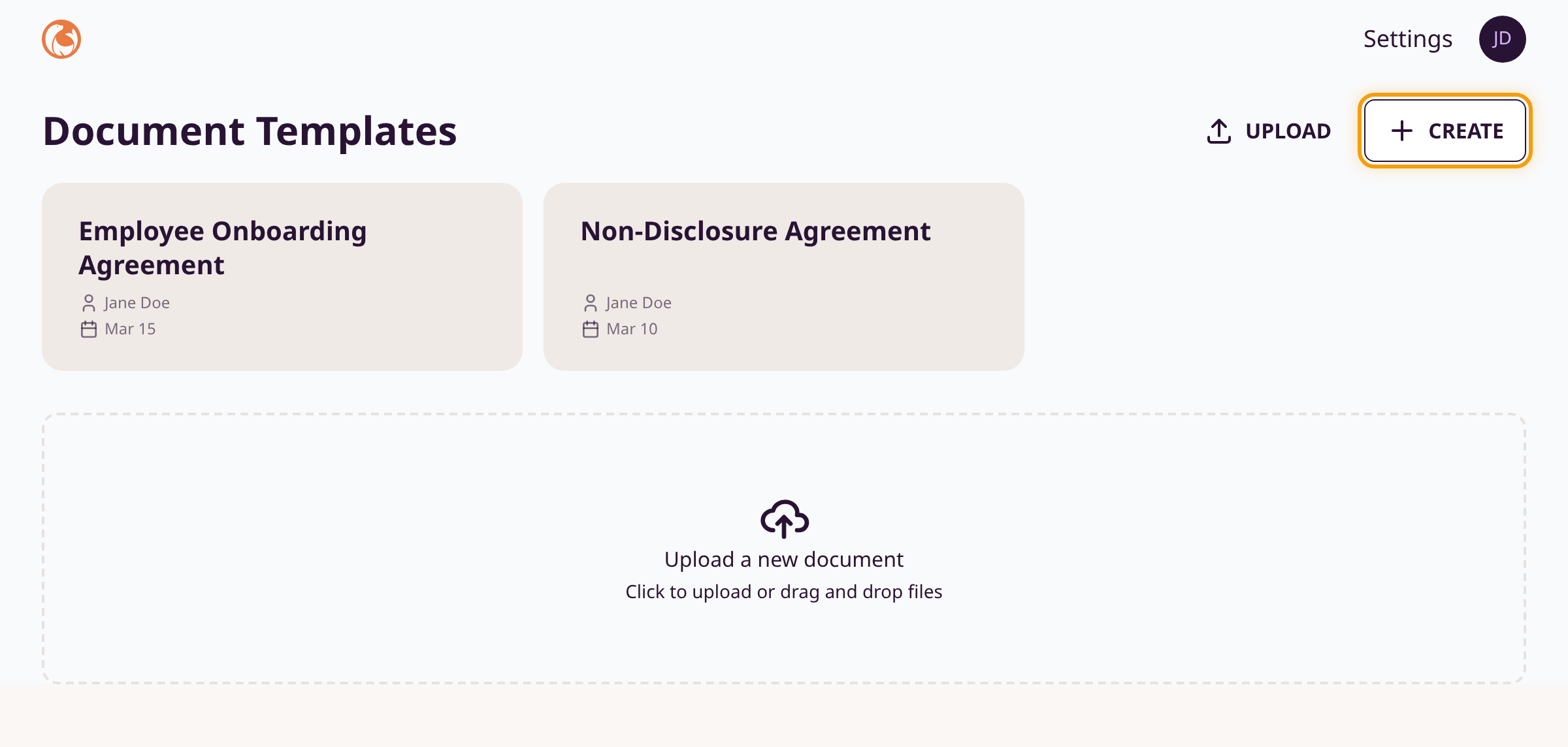
From the Document Templates page, click the + Create button in the top-right corner. You can also drag and drop a PDF directly onto the upload area at the bottom of the page.
Name the template and create it
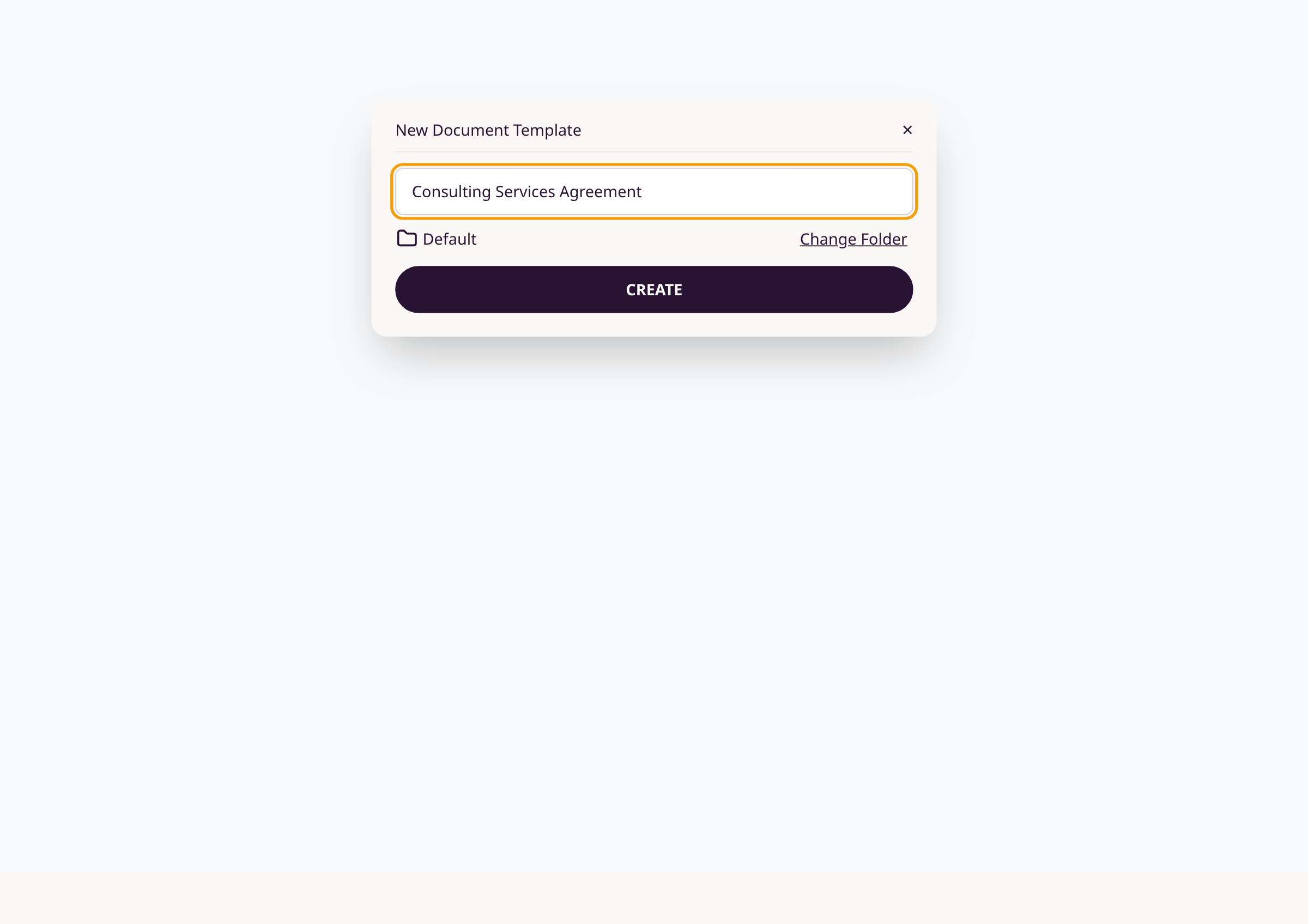
Enter a name in the Document Name field. Optionally change the folder. Click Create.
Upload your PDF in the template builder
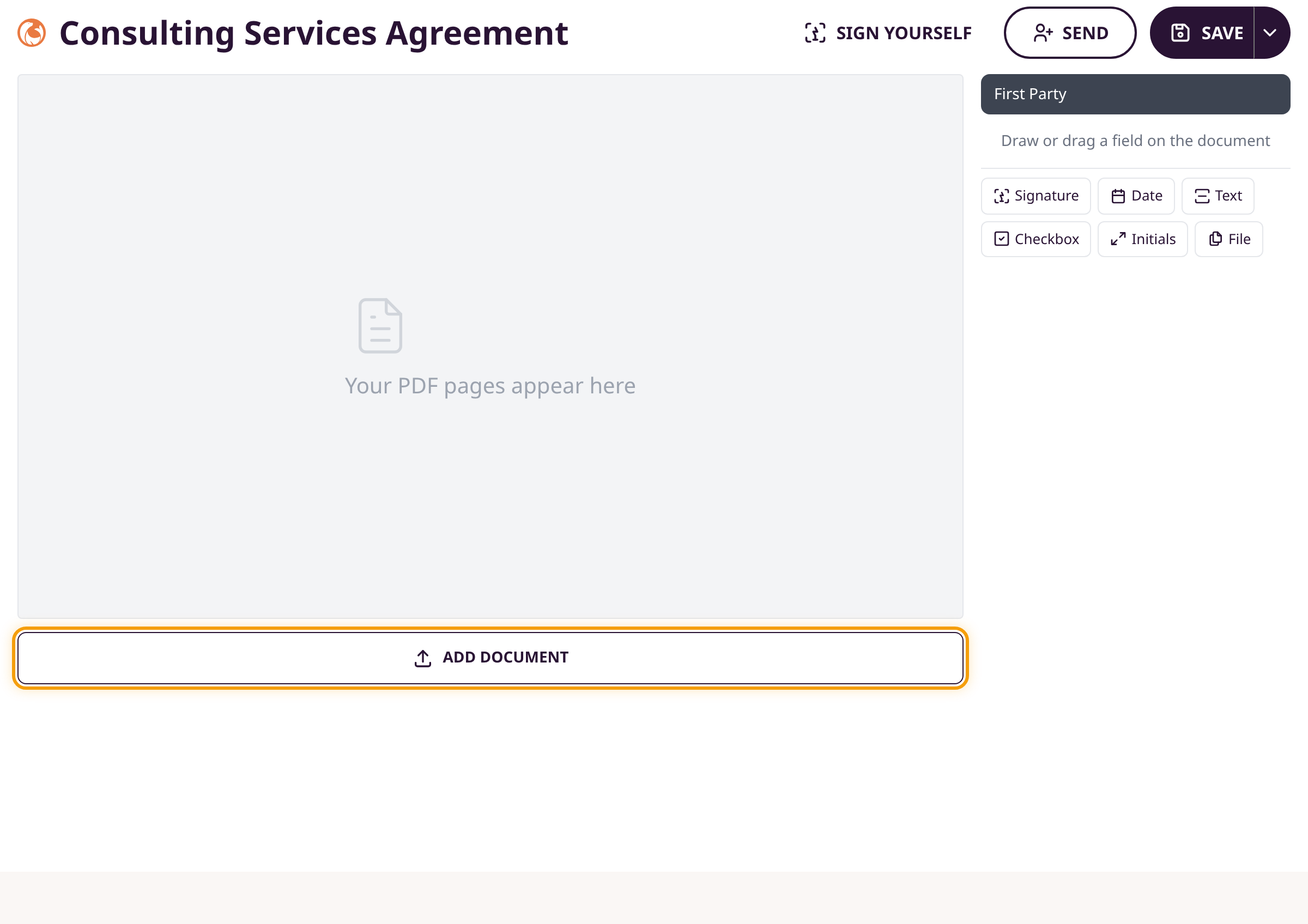
The template builder opens. Click the Add Document button below the document area. Select your PDF file. The pages render in the main panel.
Save your template
Click Save in the top-right corner. Your template is ready to send for signing.
Tips
- You can upload multiple PDF files into a single template by clicking Add Document again.
- Drag and drop a PDF directly onto the dashboard to skip the naming dialog — the filename becomes the template name automatically.
- If your PDF contains existing form fields, DocuSeal detects them and asks whether to keep or remove them.
Summary
You now have a template built from your PDF. Use the Send button to collect signatures, or Sign Yourself to fill it out on your own.
Was this article helpful?
Help centre by supportpages.io — AI-generated documentation for SaaS.
Have a question?
Search our articles, or ask and get an answer straight away.