
How to navigate the dashboard and understand document statuses
Updated 7 months ago
Browse All
How to switch between Templates and Submissions views on the dashboard, and what each submission status means.
Prerequisites
- A DocuSeal account with at least one template created
Steps
Open the Templates view
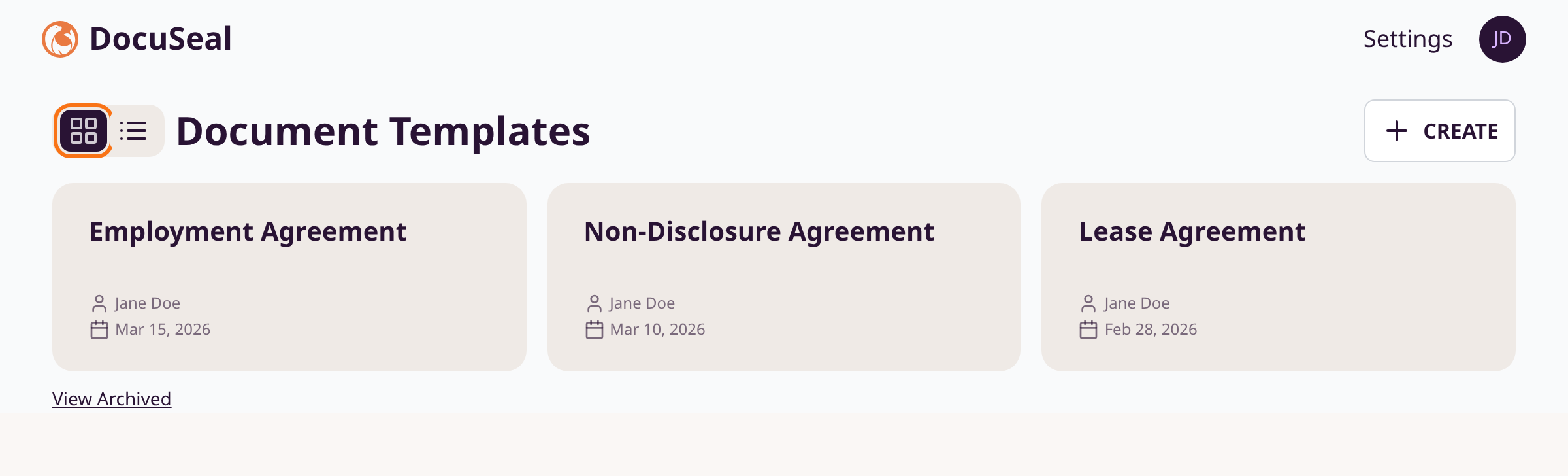
After signing in, the dashboard defaults to Templates view. This shows your document templates as a grid of cards. Each card displays the template name, author, and creation date. Click any card to open that template.
Switch to the Submissions view
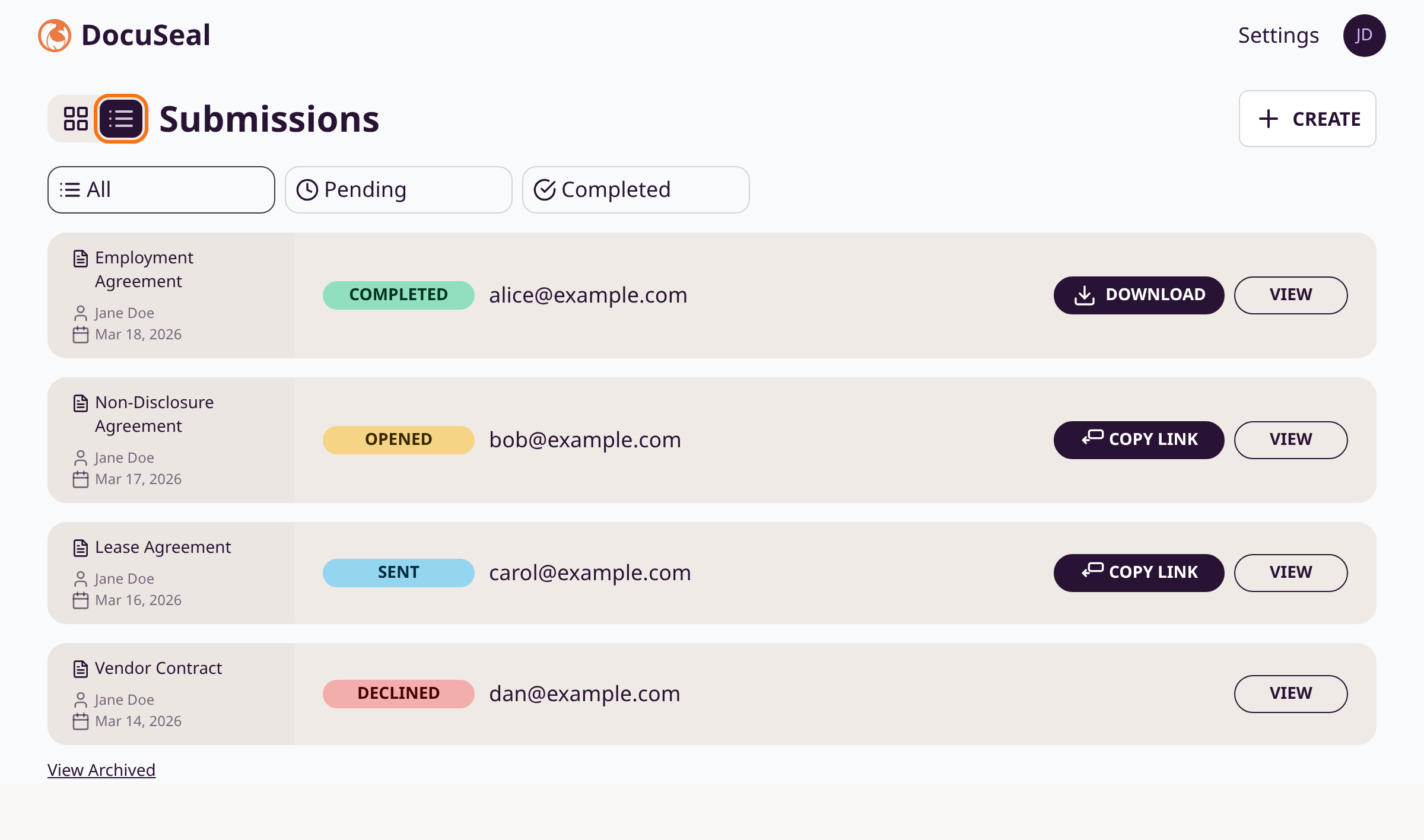
Click the list icon in the toggle next to the page title. The view switches to Submissions -- a chronological list of all documents sent for signing. Click the grid icon to switch back to Templates.
Filter submissions by status
The Submissions view shows three quick-filter tabs: All, Pending, and Completed. Click a tab to narrow the list. Use the Filter button for more options: status, date range, author, or folder.
Understand submission statuses
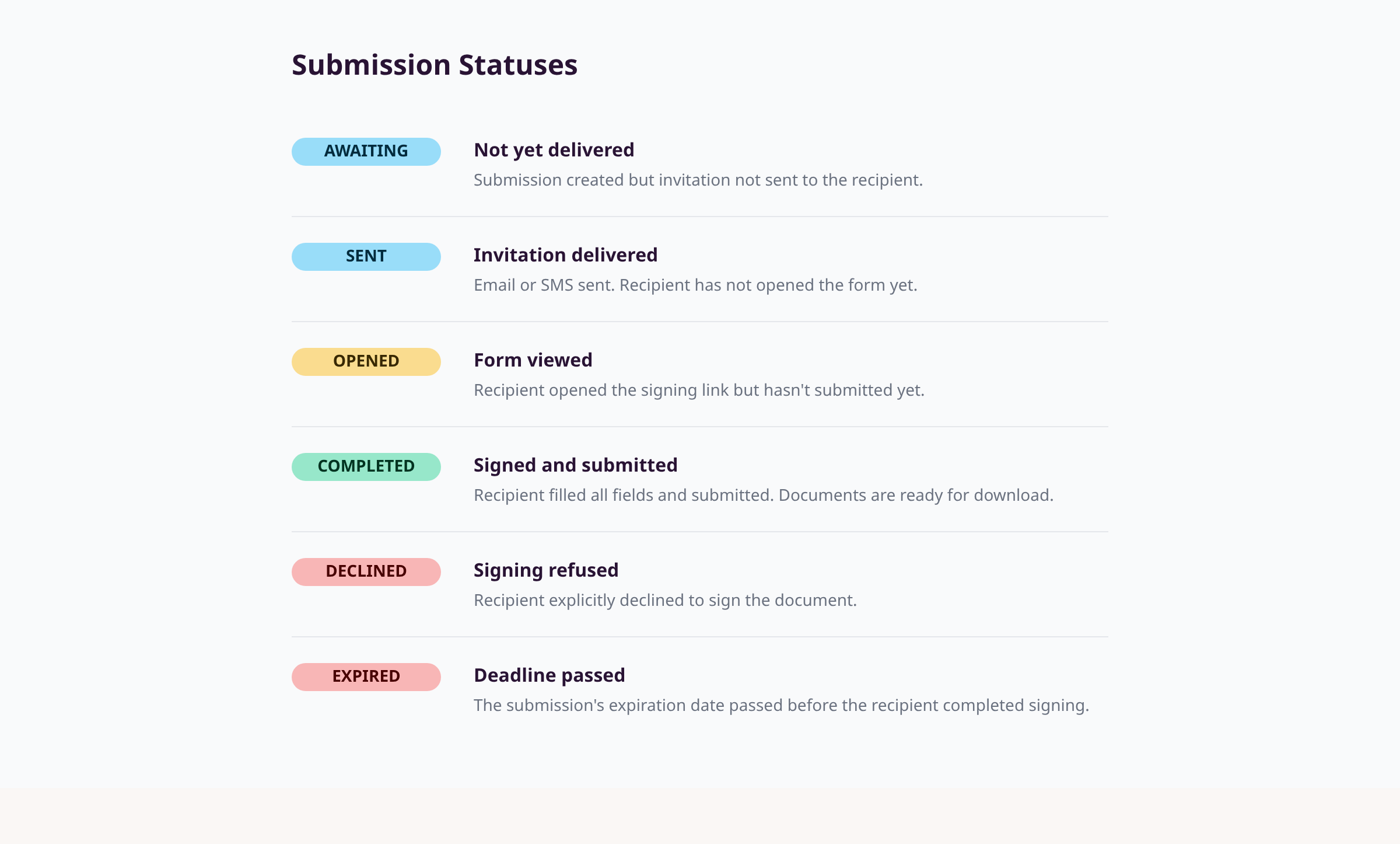
Each submission row displays a colored status badge for every recipient:
- Awaiting (blue) -- Created but not yet sent to the recipient.
- Sent (blue) -- Invitation email/SMS delivered. Recipient hasn't opened the form.
- Opened (yellow) -- Recipient opened the signing link but hasn't submitted.
- Completed (green) -- Recipient signed and submitted. Documents ready to download.
- Declined (red) -- Recipient refused to sign.
- Expired (red) -- Expiration date passed before signing was completed.
Take action on a submission
Each submission row has action buttons on the right:
- Download -- appears for completed submissions. Downloads signed documents.
- Copy Link -- copies the signing URL for pending submissions.
- View -- opens the full submission detail page.
- Archive (box icon) -- archives the submission.
Tips
- Hover over a status badge to see the exact date and time of that status change.
- Use the search bar to find submissions or templates by recipient name or email.
- The Pending filter tab combines all non-completed statuses: awaiting, sent, and opened.
- Click View Archived at the bottom of either view to access archived items.
Summary
The dashboard toggle lets you switch between a Templates grid and a Submissions list. Status badges on each submission track progress from sent through completed or declined.
Was this article helpful?
Built on supportpages.io — automated help articles for SaaS products.
Have a question?
Search our articles, or ask and get an answer straight away.