
How to set up multiple signers and assign fields to each role
Updated 7 months ago
Browse All
Add multiple signer roles to a template and assign specific fields to each role so every signer only sees their own fields.
Prerequisites
- A DocuSeal account with access to create templates
- A PDF or document uploaded to the template builder
Steps
Open the template builder
Go to Templates and click on an existing template, or create a new one by uploading a document. The template builder opens with a document preview on the right and a fields panel on the left.
Add signer roles
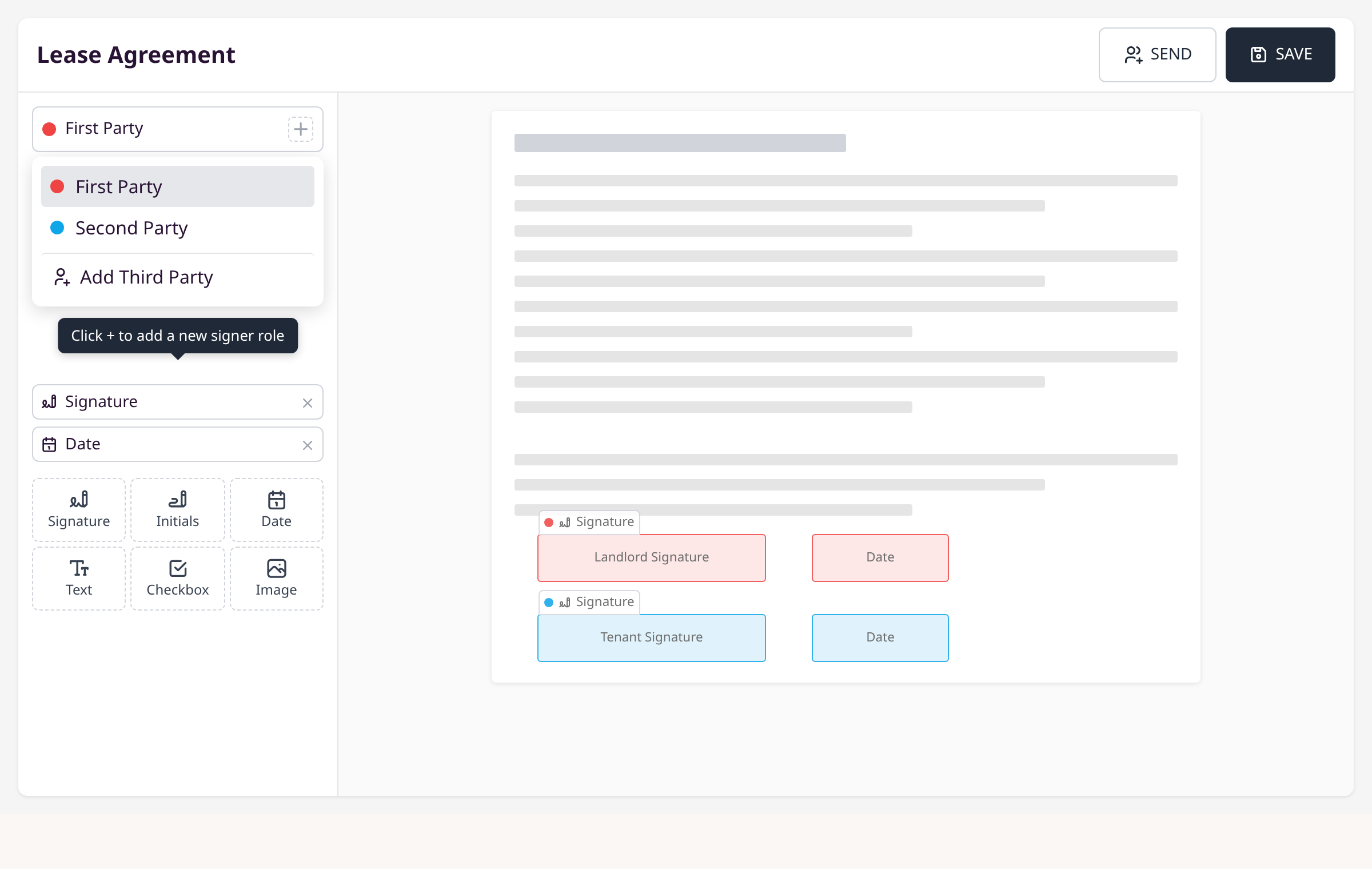
In the left panel, click the + button next to the current role name (e.g., "First Party"). Select Add Second Party from the dropdown. Repeat to add more roles. Each role gets a unique color (red, blue, green, etc.).
Select a role and place fields
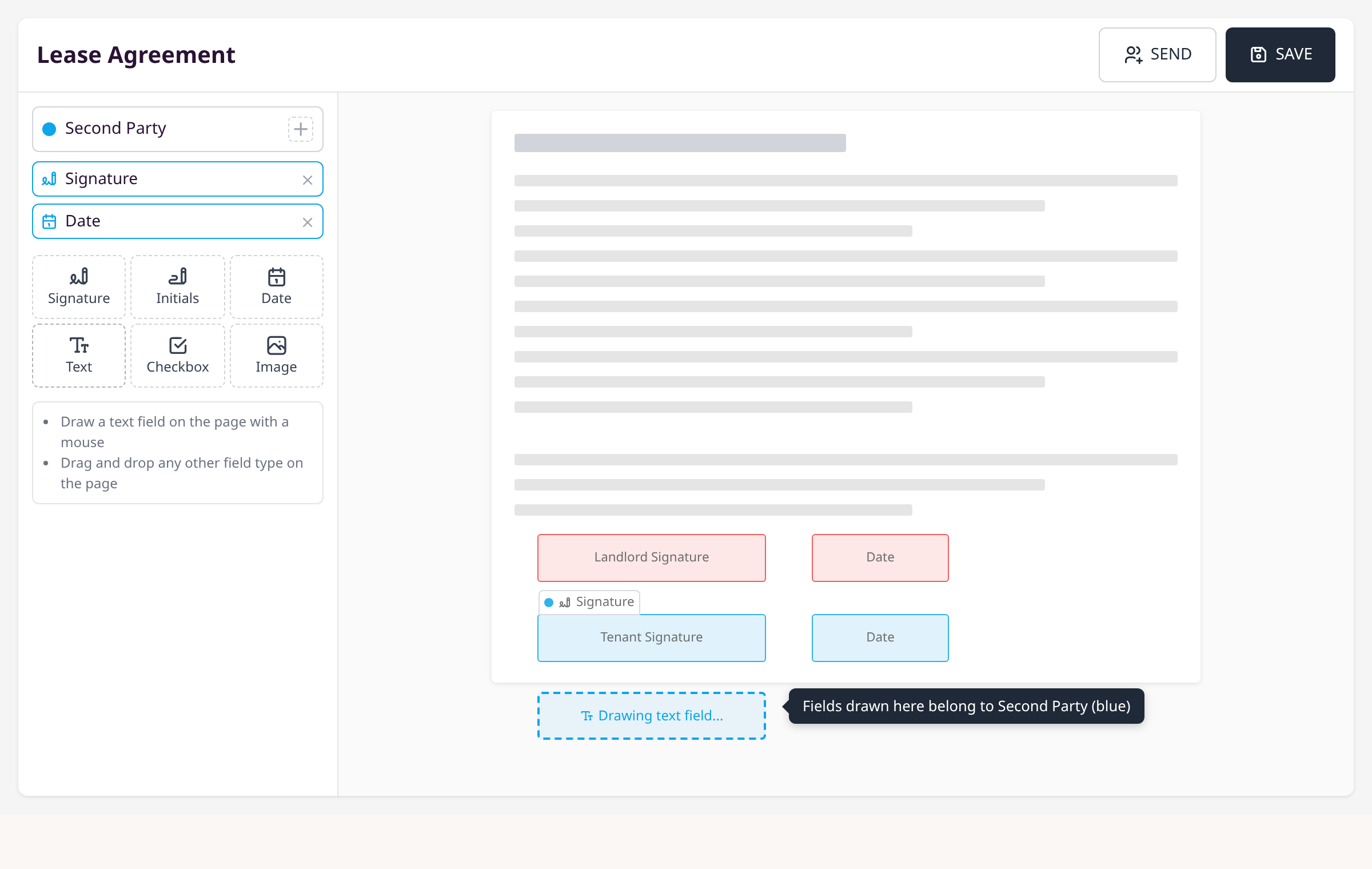
Click a role name in the dropdown to select it. All fields you draw or drag onto the document are assigned to that role. Drag a field type (Signature, Date, Text, etc.) from the grid onto the document, or click a field type then draw it directly on the page.
Reassign a field to a different role
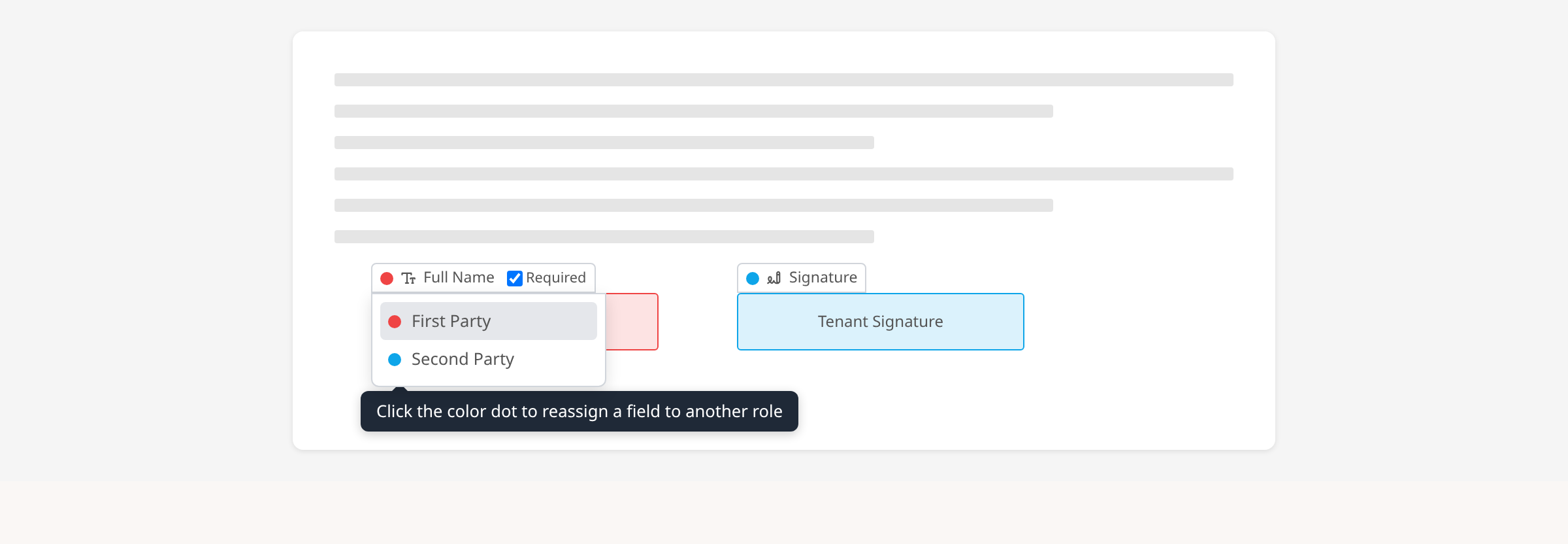
Click any field on the document to select it. In the field controls bar above the field, click the colored dot on the left. A dropdown appears listing all roles. Select the target role. The field color changes to match.
Rename a role
Click the role name text (e.g., "First Party") in the left panel dropdown. Type a custom name like "Landlord" or "Tenant". Press Enter or click away.
Reorder or remove roles
Hover over a role in the dropdown to reveal arrow and trash icons. Use arrows to change signing order. Click the trash icon to remove a role and all its fields.
Send to multiple signers
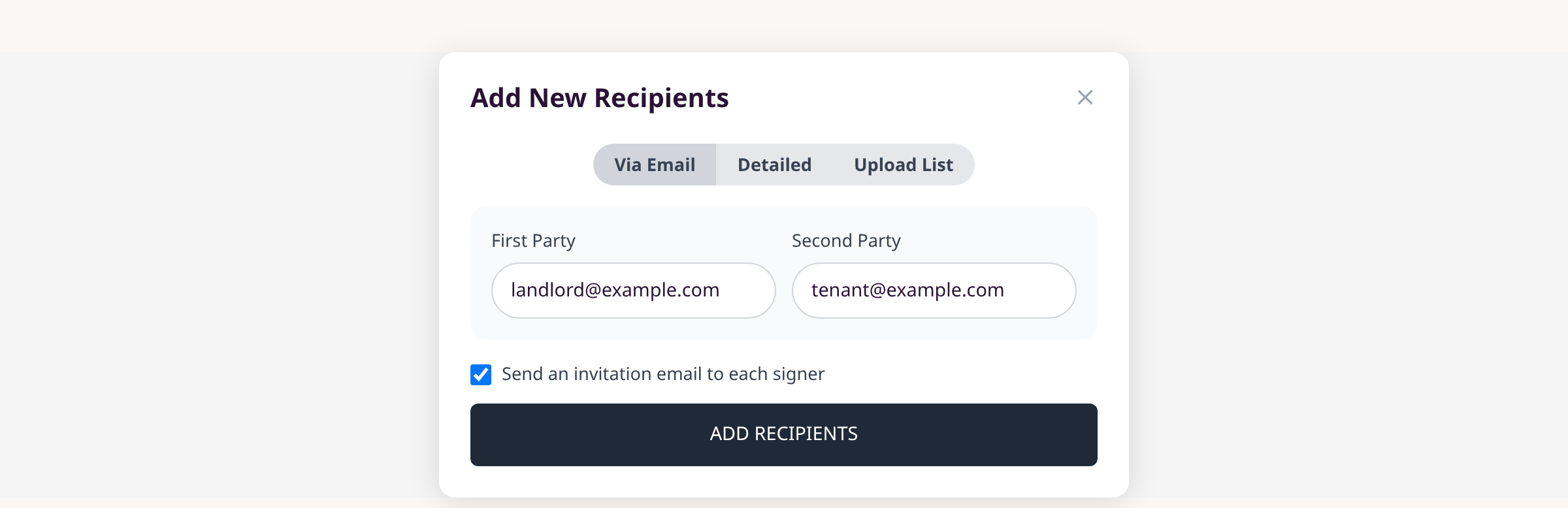
Click Send. Each role appears as a separate input field. Enter the email address for each signer. Click Add Recipients.
Save the template
Click Save. The field-to-role assignments are stored with the template for all future submissions.
Tips
- Fields are color-coded per role -- red for First Party, blue for Second Party, green for Third Party, and so on.
- Switch between roles in the sidebar to see only that role's fields in the field list.
- You can add up to 20 signer roles per template.
- When sending, only the first signer's email is required by default. Enable "Require all submitters" in template preferences to require all.
Summary
Each signer role gets its own color-coded fields. Select a role, place fields, and repeat for each signer. When you send the document, each person only fills out the fields assigned to their role.
Was this article helpful?
Powered by supportpages.io — help centre software for SaaS.
Have a question?
Search our articles, or ask and get an answer straight away.