
How to create a dynamic document with variable text sections
Updated 7 months ago
Browse All
Use dynamic documents to include or exclude entire sections of content based on variable values filled in when sending a document for signing.
Prerequisites
- A DOCX or HTML template uploaded as a dynamic document
- At least one recipient role configured on the template
Steps
Upload a dynamic document
Go to Templates and click New Template. Upload a .docx or .html file. DocuSeal automatically detects it as a dynamic document, enabling the rich text editor with variable and condition support.
Add variables to your document
Type [[variable_name]] directly in the document editor to insert a variable placeholder. Use double square brackets around any name, e.g. [[company_name]] or [[payment_terms]]. These become fillable fields when sending.
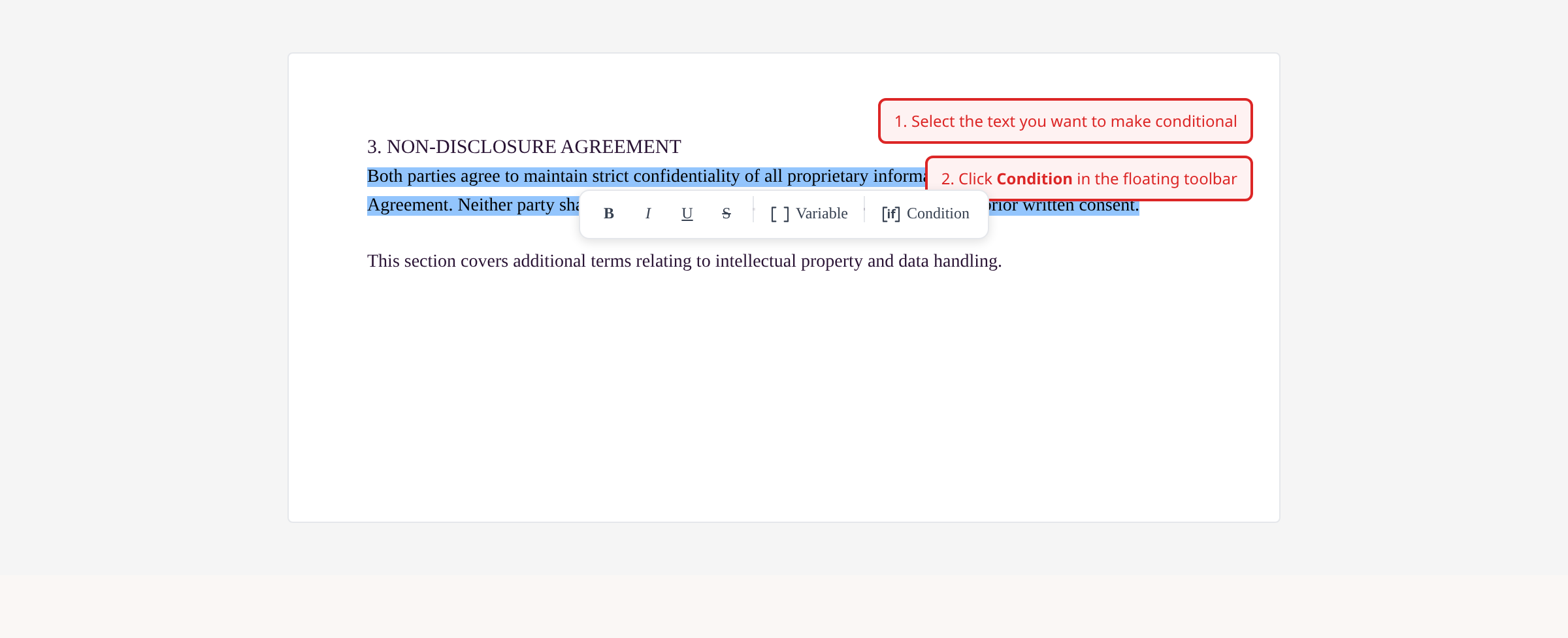
Wrap a section in a condition
Select the text you want to conditionally show or hide. A floating toolbar appears. Click Condition. DocuSeal wraps the selection with [[if:variable]] and [[end]] tags.
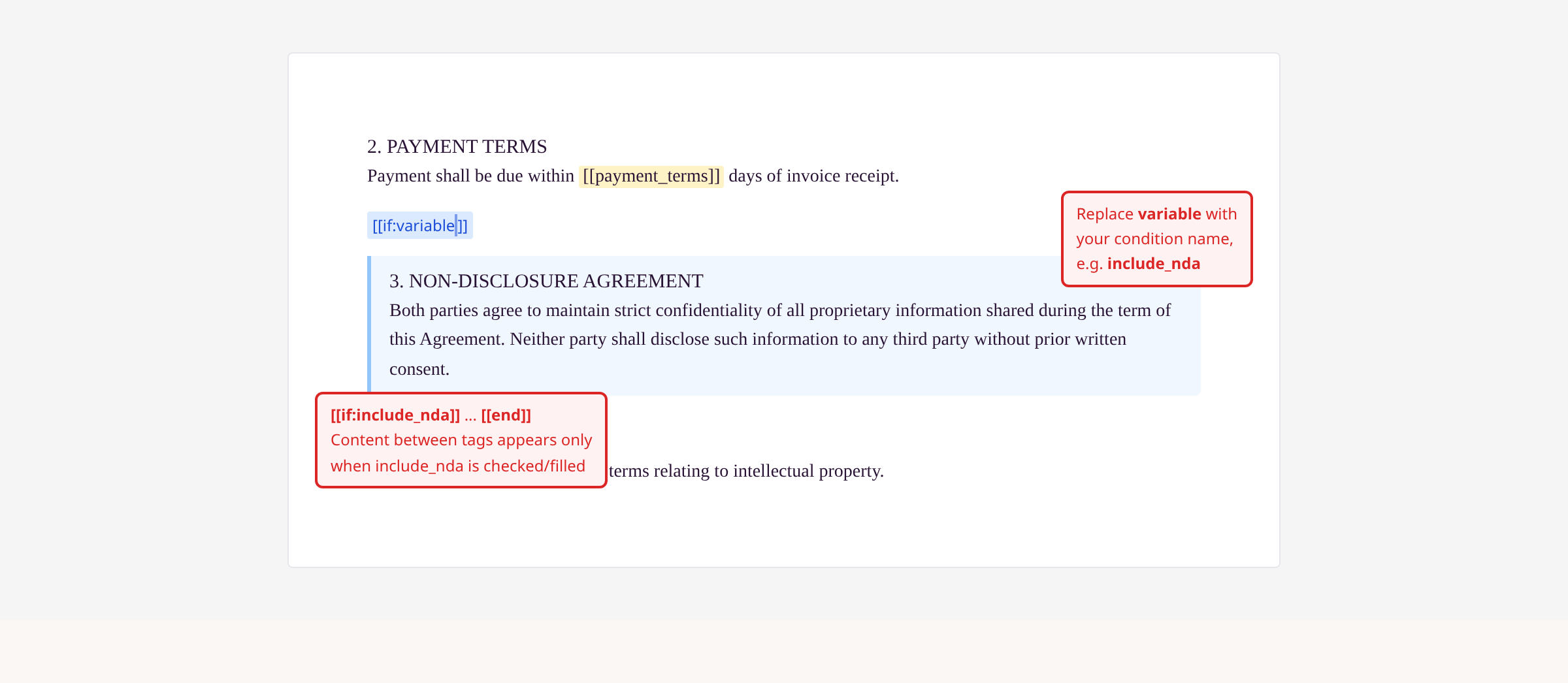
Name the condition variable
Replace the placeholder word variable in the [[if:variable]] tag with a descriptive name, e.g. [[if:include_nda]]. Everything between [[if:include_nda]] and [[end]] only appears in the final document when that variable is filled or checked.
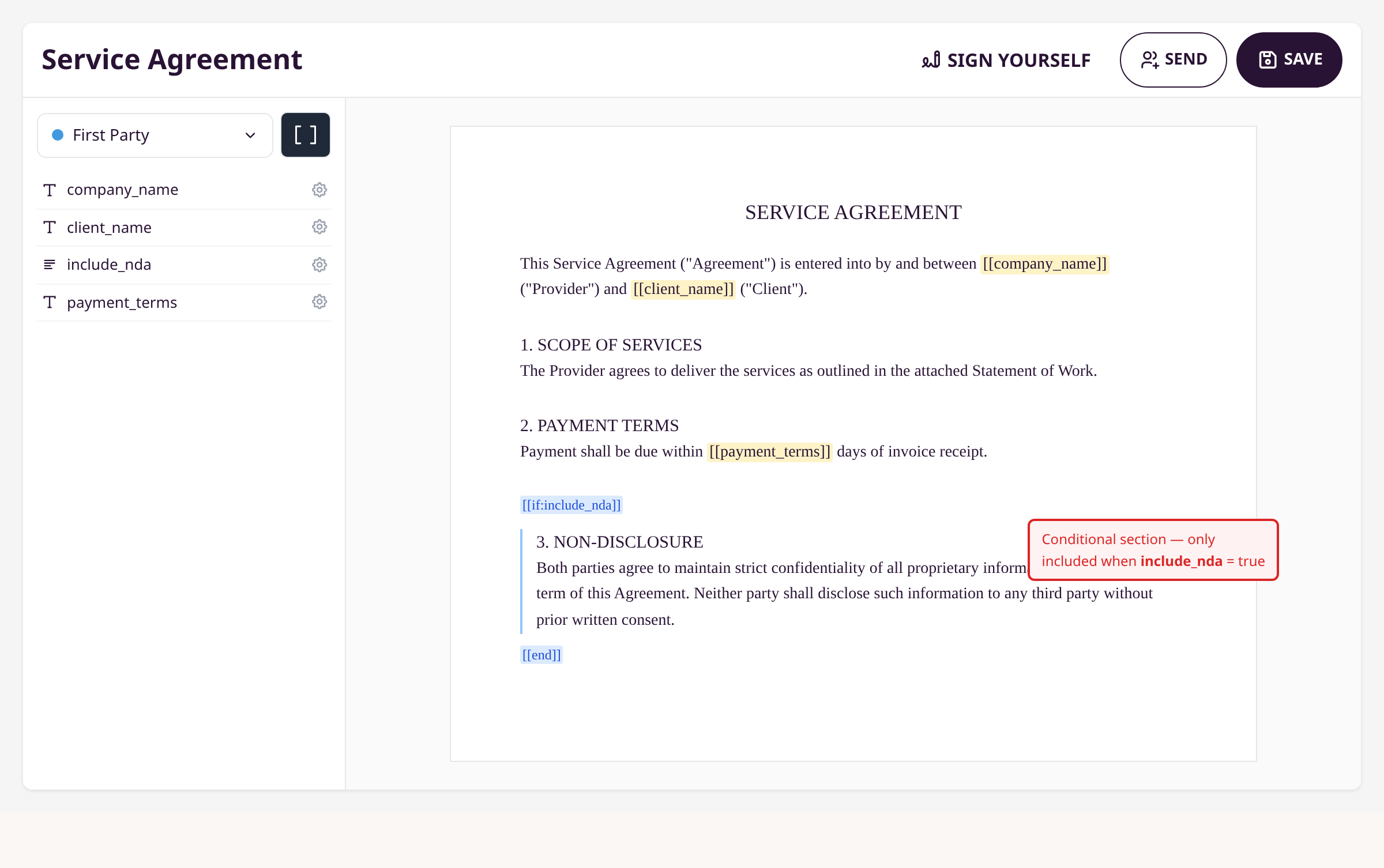
Configure variable types in the sidebar
Click the [[ ]] button next to the role selector to open the variables panel. Click the gear icon on any variable to set its type: text, number, date, checkbox, radio, or select. For condition variables, checkbox is typical.

Use comparison conditions (optional)
For more control, use comparison operators in condition tags:
- [[if:plan == "premium"]] — equals
- [[if:amount > 1000]] — greater than
- [[if:region AND active]] — multiple conditions
- [[if:!include_nda]] — negation
Combine with [[else]] for alternate content: [[if:plan == "premium"]]...[[else]]...[[end]].
Save and send
Click Save. When you click Send, a form appears with input fields for each variable. Fill in values or toggle checkboxes. The final document includes or excludes conditional sections based on these values.
Tips
-
Variable names are auto-detected from
[[...]]tags and appear in the sidebar automatically. -
Use
[[for:items]]...[[end]]to repeat a section for each item in a list variable. - Set default values on variables via the gear icon in the variables panel to pre-fill common values.
- Condition variables set to checkbox type render as toggles in the send form, making it easy to include/exclude sections.
Summary
Wrap content between [[if:variable]] and [[end]] tags in a dynamic document to conditionally include or exclude sections. Configure each variable's type in the sidebar, then fill values when sending to control what appears in the final signed document.
Was this article helpful?
Generated by supportpages.io, an AI changelog generator for SaaS teams.
Have a question?
Search our articles, or ask and get an answer straight away.