
How to complete a one-time email verification code before signing
Updated 7 months ago
Browse All
Enter a one-time verification code sent to your email to unlock a signing form that requires two-factor authentication.
Prerequisites
- A signing link received by email
- Access to the email inbox associated with the signing request
Steps
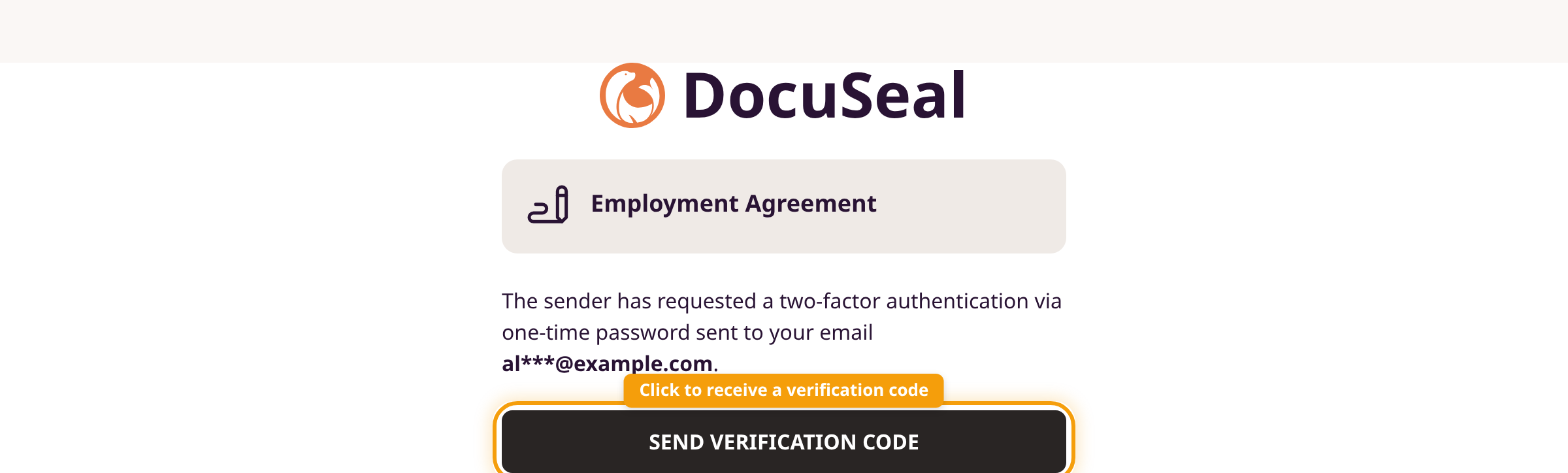
Click Send Verification Code
Open the signing link from your email. The verification page shows the document name and your masked email address. Click Send Verification Code.
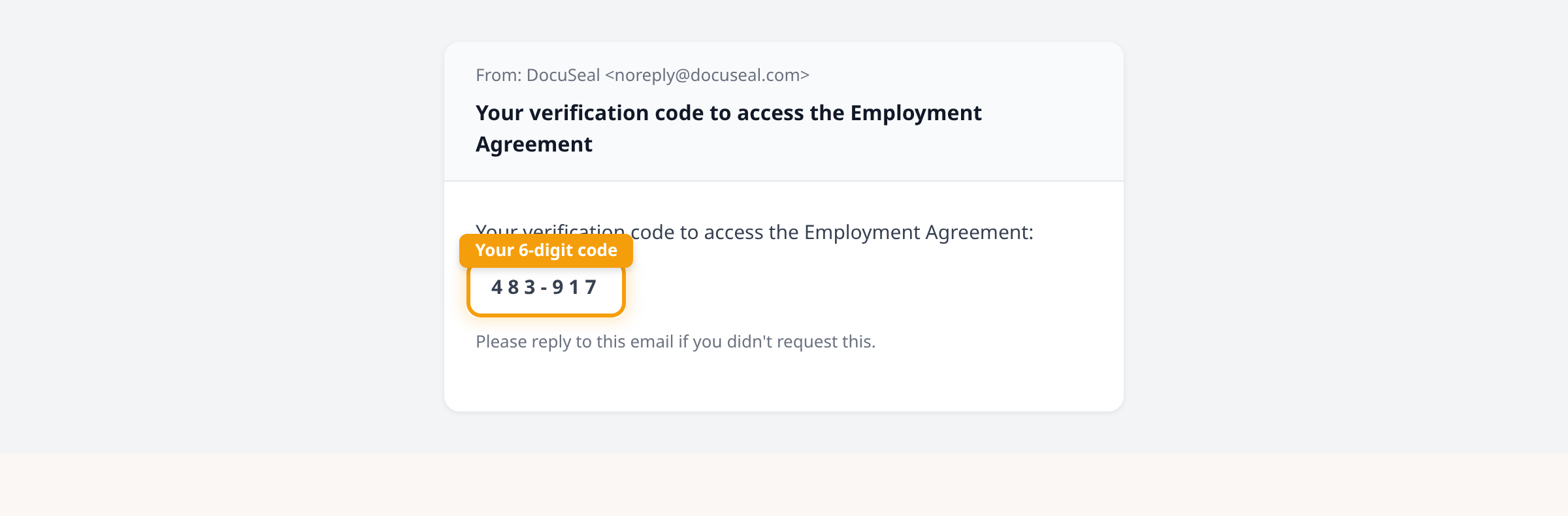
Find the code in your inbox
Check your email for a message from DocuSeal with the subject "Your verification code to access [document name]." Copy the 6-digit code.
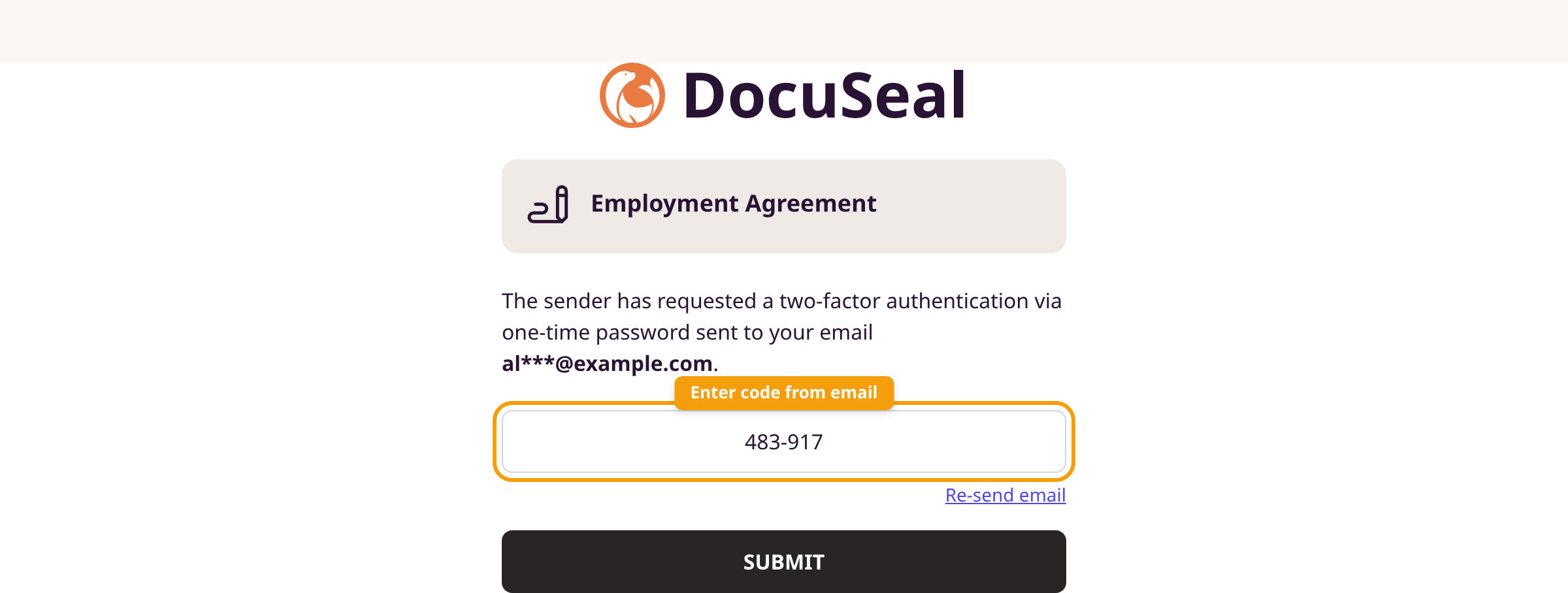
Enter the code and submit
Paste or type the code into the XXX-XXX field. Click Submit. The signing form loads automatically.
Tips
- The code expires after 5 minutes. Click Re-send email to get a new one.
- If you don't see the email, check your spam or junk folder.
- You can only attempt verification a few times before being temporarily locked out.
Summary
Click Send Verification Code, copy the 6-digit code from your email, enter it on the verification page, and click Submit to access the signing form.
Was this article helpful?
Kept in sync by supportpages.io — continuous documentation for your product.
Have a question?
Search our articles, or ask and get an answer straight away.