
How to send your first document for signature
Updated 7 months ago
Browse All
Select a template, enter a recipient's email, and send a signing invitation.
Prerequisites
- A DocuSeal account with at least one template created
- The recipient's email address
Steps
Open your template
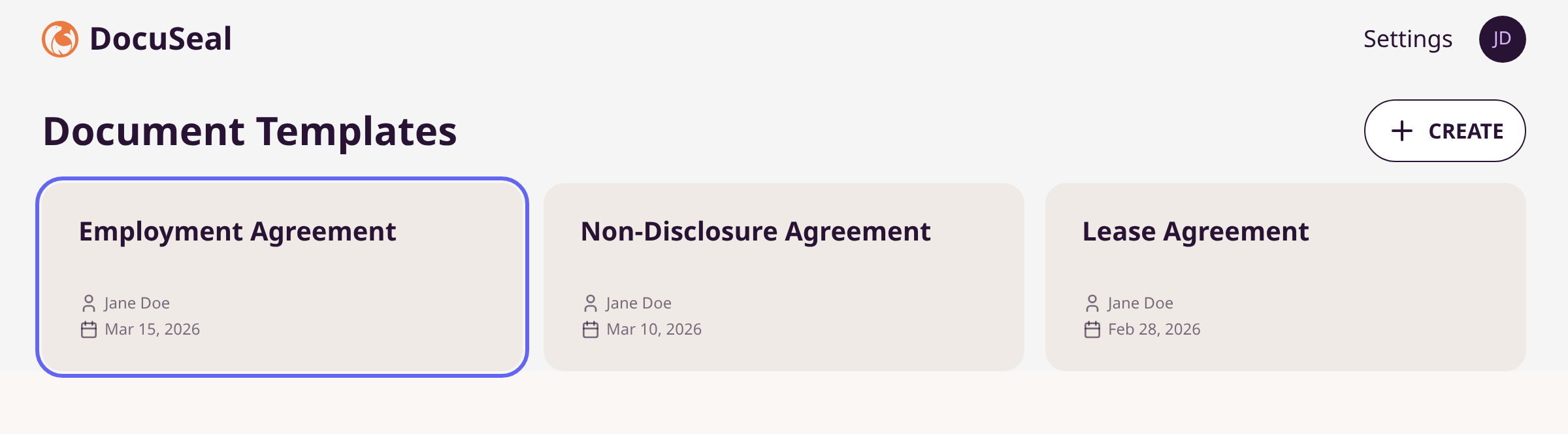
Go to Document Templates on the dashboard. Click the template you want to send.
Click Add Recipients
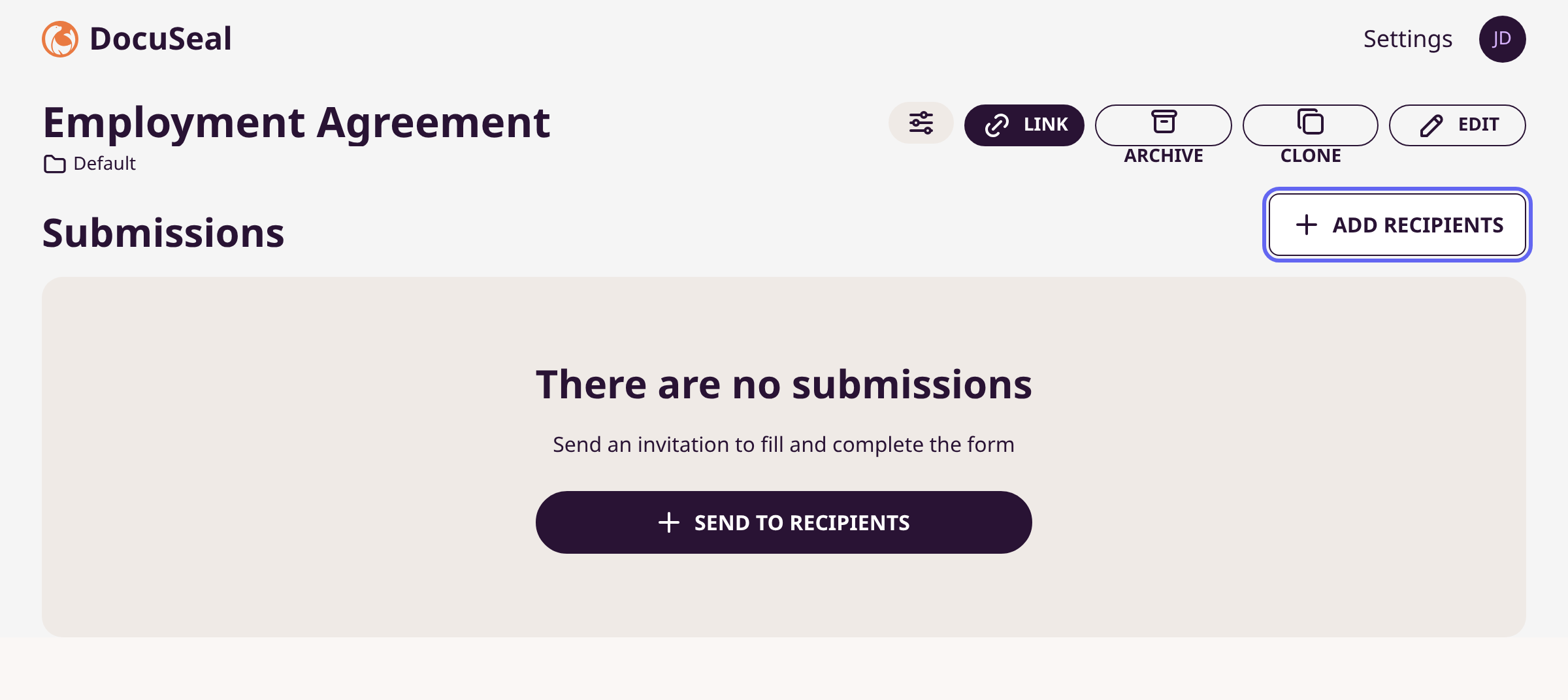
On the template page, click + Add Recipients in the top-right corner of the Submissions section.
Enter the recipient's email and send
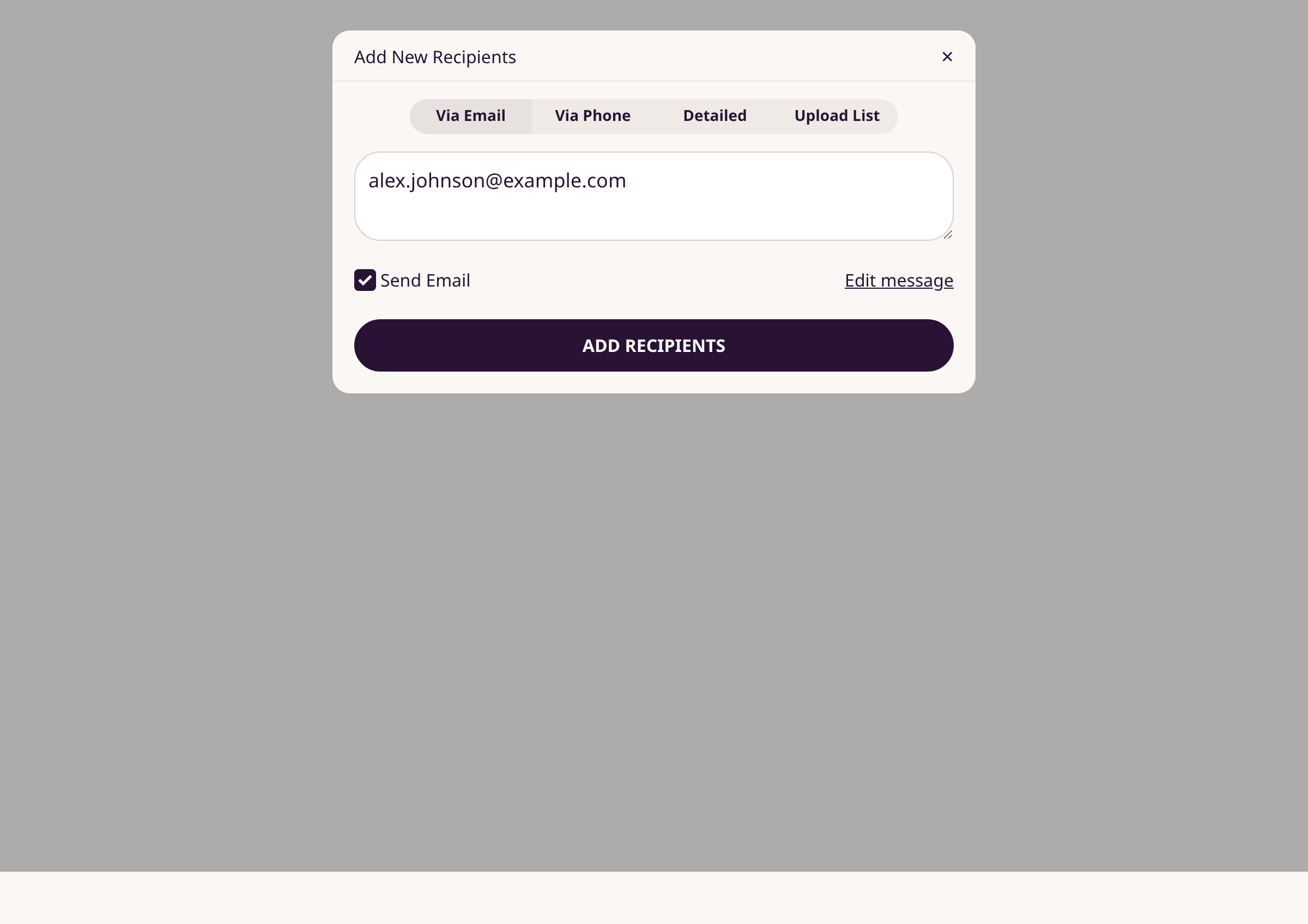
In the modal, type the recipient's email address in the text area. Multiple emails can be separated by commas. The Send Email checkbox is enabled by default — leave it checked to email the signing invitation automatically. Click Add Recipients.
Confirm the invitation was sent
You are redirected to the template page. A confirmation message appears: "New recipients have been added." The recipient now appears in the Submissions list with a Pending status.
Tips
- Use the Via Phone tab in the modal to send signing links via SMS instead of email.
- Click Edit message next to the Send Email checkbox to customize the invitation subject and body.
- To send to multiple people with different roles, switch to the Detailed tab.
- Use Upload List to bulk-send from a CSV file.
Summary
Select a template, add recipient emails, and click Add Recipients. DocuSeal emails the signing link automatically.
Was this article helpful?
Generated by supportpages.io, automating product documentation from your codebase.
Have a question?
Search our articles, or ask and get an answer straight away.