
How to add your initials to a document
Updated 7 months ago
Browse All
Create and place your initials when a document requires them. You can type, draw, or upload an image of your initials.
Prerequisites
- A signing link received via email or SMS
- A device with a browser (desktop or mobile)
Steps
Open the signing link
Click the link in your email or SMS invitation. The document opens in your browser with all fields you need to complete.

Navigate to the initials field
Click Sign Now at the bottom of the page. The form panel walks you through each field. When you reach an initials field, the panel displays a drawing canvas and input options.

Type your initials
By default, the type mode is active. Your initials are auto-generated from your name. Edit them in the text input below the canvas. The preview updates as you type.
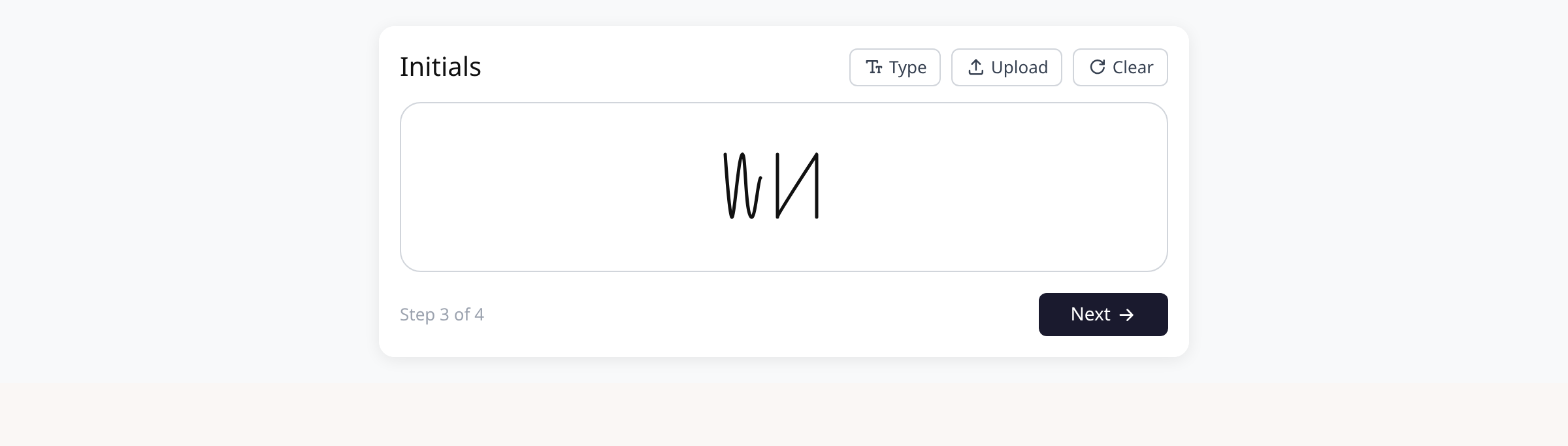
Or draw your initials
Click Draw to switch to freehand mode. Use your mouse or finger to draw directly on the white canvas.
Or upload an image
Click Upload to select an image file of your initials from your device. The image renders onto the canvas automatically.
Submit the form
Click Next to proceed to remaining fields. After the last field, click Complete to submit. If the document has multiple initials fields, your first initials are reused automatically.
Tips
- Click Clear to erase and redo your initials at any time.
- On mobile, the canvas supports touch — draw with your finger.
- If the document has multiple initials fields, you only need to initial once. The same initials carry forward.
- Initials are distinct from signatures — a document can require both.
Summary
When a document requires initials, type them, draw them, or upload an image in the signing form panel, then complete the remaining fields and submit.
Was this article helpful?
Built on supportpages.io — automated help articles for SaaS products.
Have a question?
Search our articles, or ask and get an answer straight away.