
How to resend a signing invitation to a recipient
Updated 7 months ago
Browse All
Resend the invitation email to a recipient who hasn't completed their document.
Prerequisites
- A sent submission with at least one pending (not yet completed) recipient
- SMTP email configured (self-hosted) or active DocuSeal account (cloud)
Steps
1
Open the pending submission
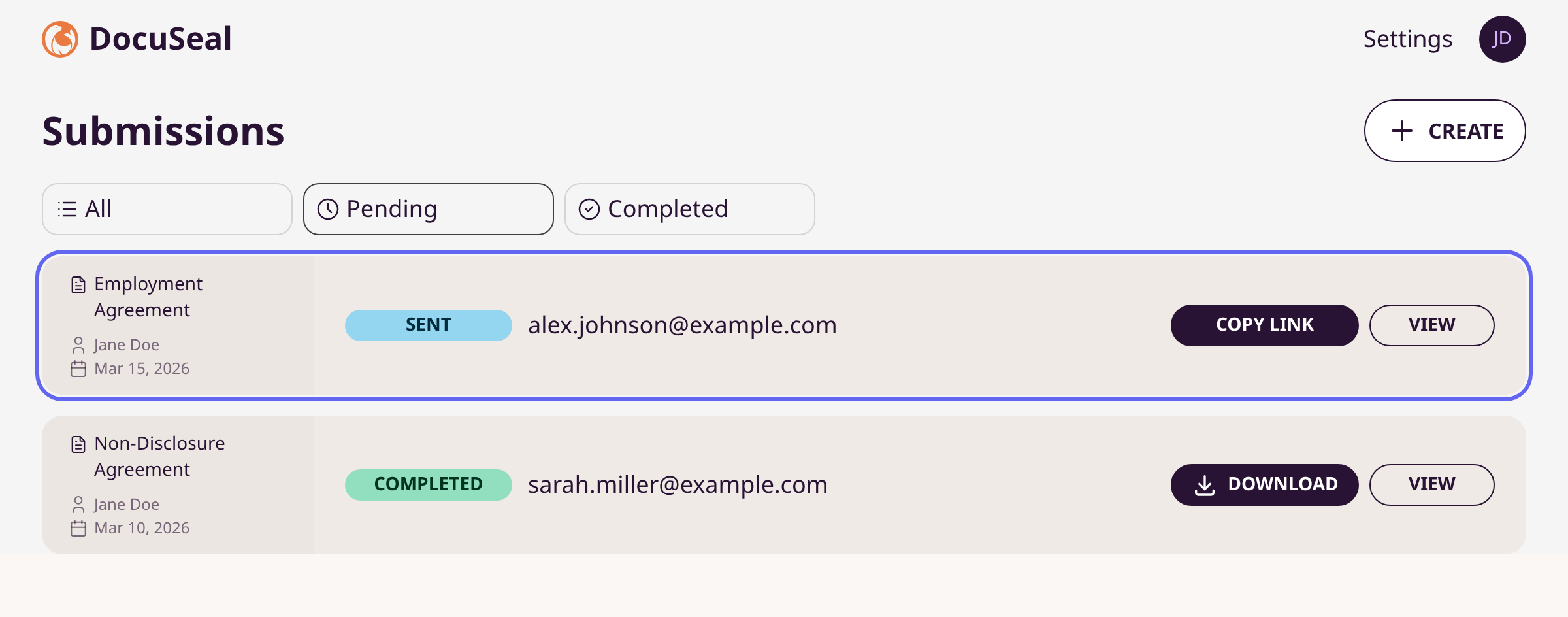
Go to Submissions. Find the submission with a Sent or Opened status badge. Click View or click anywhere on the submission row.
2
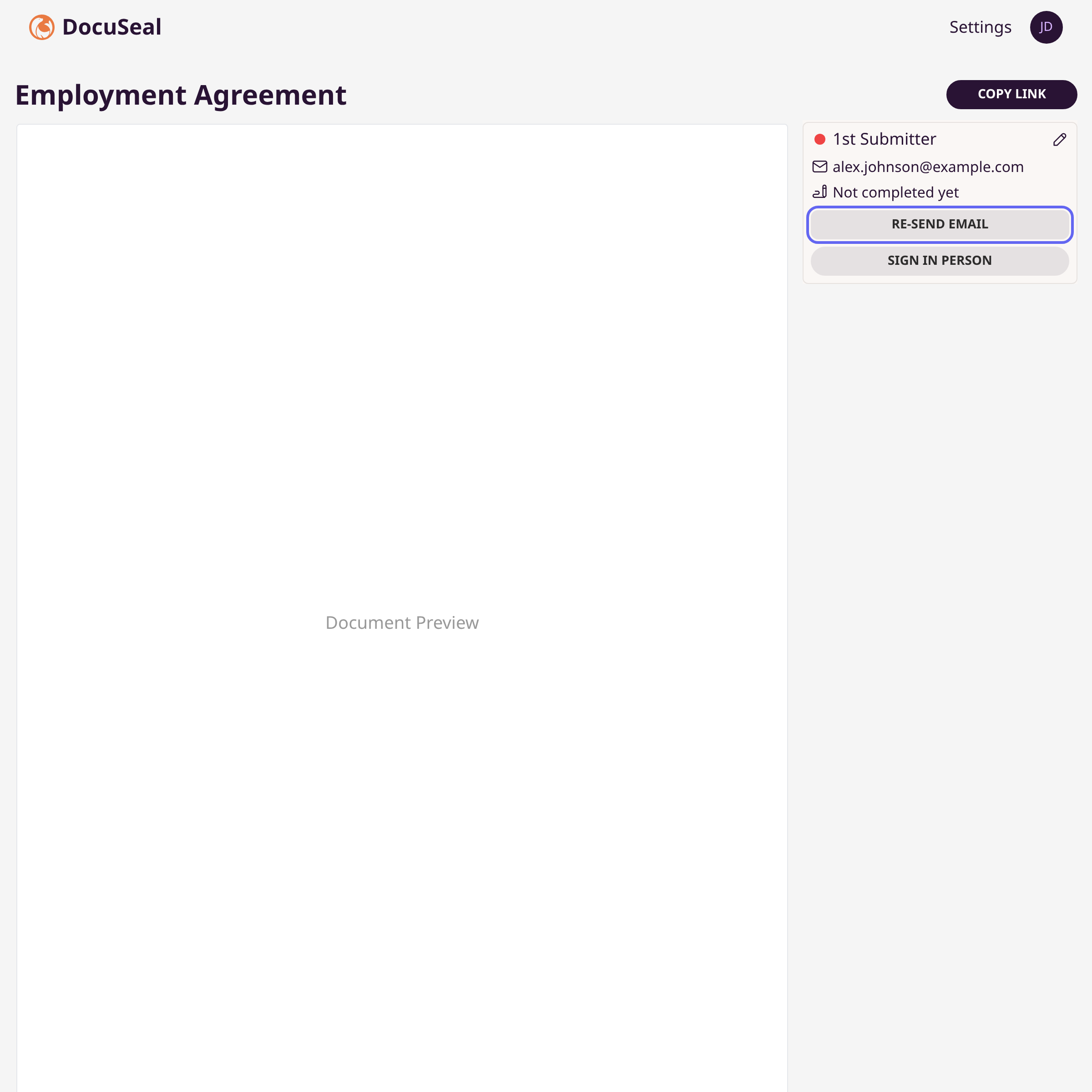
Click Re-send Email
In the right sidebar, find the recipient's card. Click Re-send Email.
3
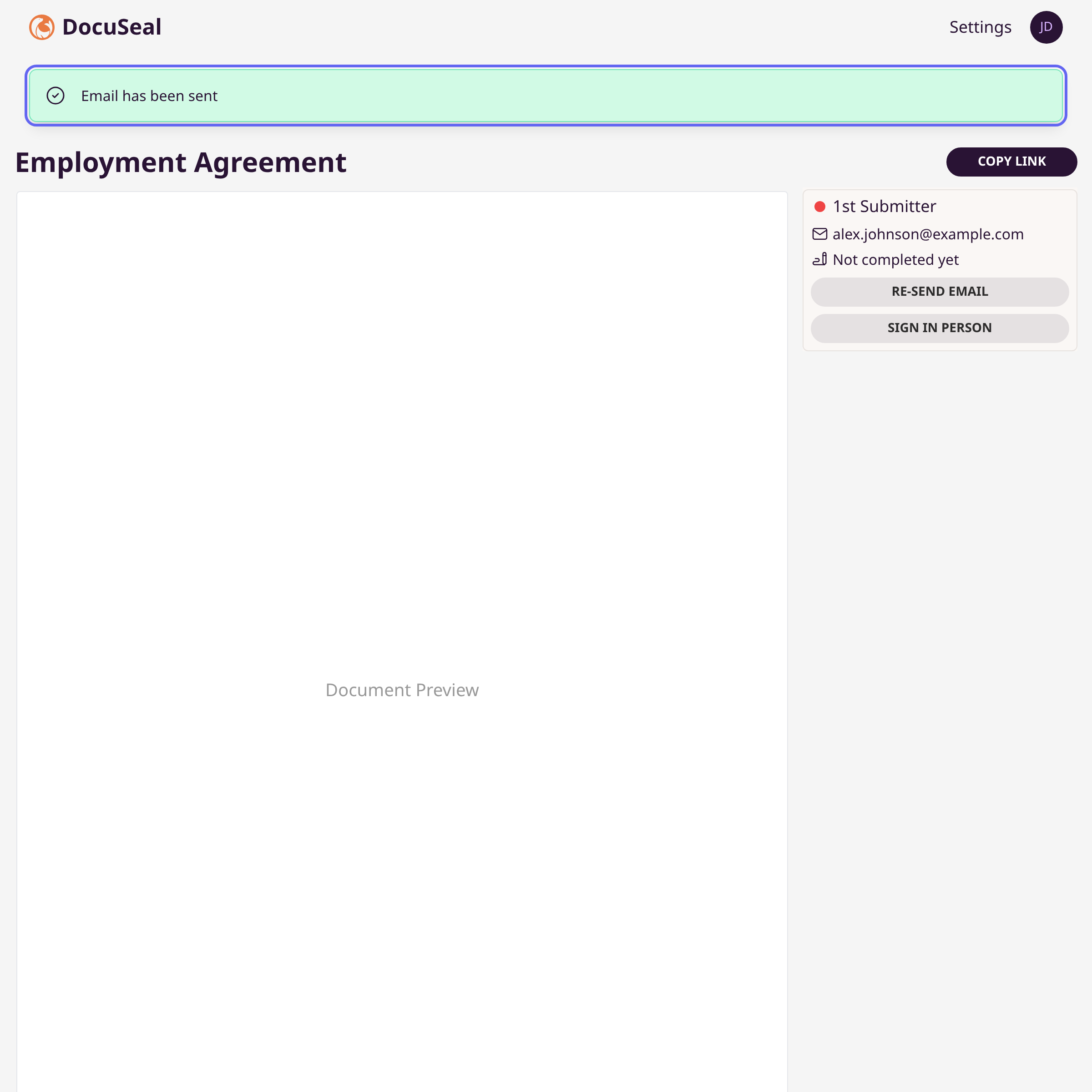
Confirm the email was sent
A green banner appears: "Email has been sent." The recipient receives a new invitation email with the same signing link.
Tips
- The Re-send Email button only appears for recipients who have not yet completed or declined the form.
- On cloud-hosted DocuSeal, you can only resend once every 10 hours to the same recipient.
- On mobile, tap the Signers button at the bottom-right to reveal the recipient sidebar.
- You can also copy the signing link directly using the Copy Link button and share it manually.
Summary
Open the pending submission, find the recipient in the sidebar, and click Re-send Email.
Was this article helpful?
Thank you for your feedback!
Created with supportpages.io — AI help centre software.
Have a question?
Search our articles, or ask and get an answer straight away.