
How to organize templates into folders
Updated 7 months ago
Browse All
Group templates into folders and subfolders to keep your template library organized and easy to navigate.
Prerequisites
- A DocuSeal account with at least one template created
Steps
View folders on the dashboard
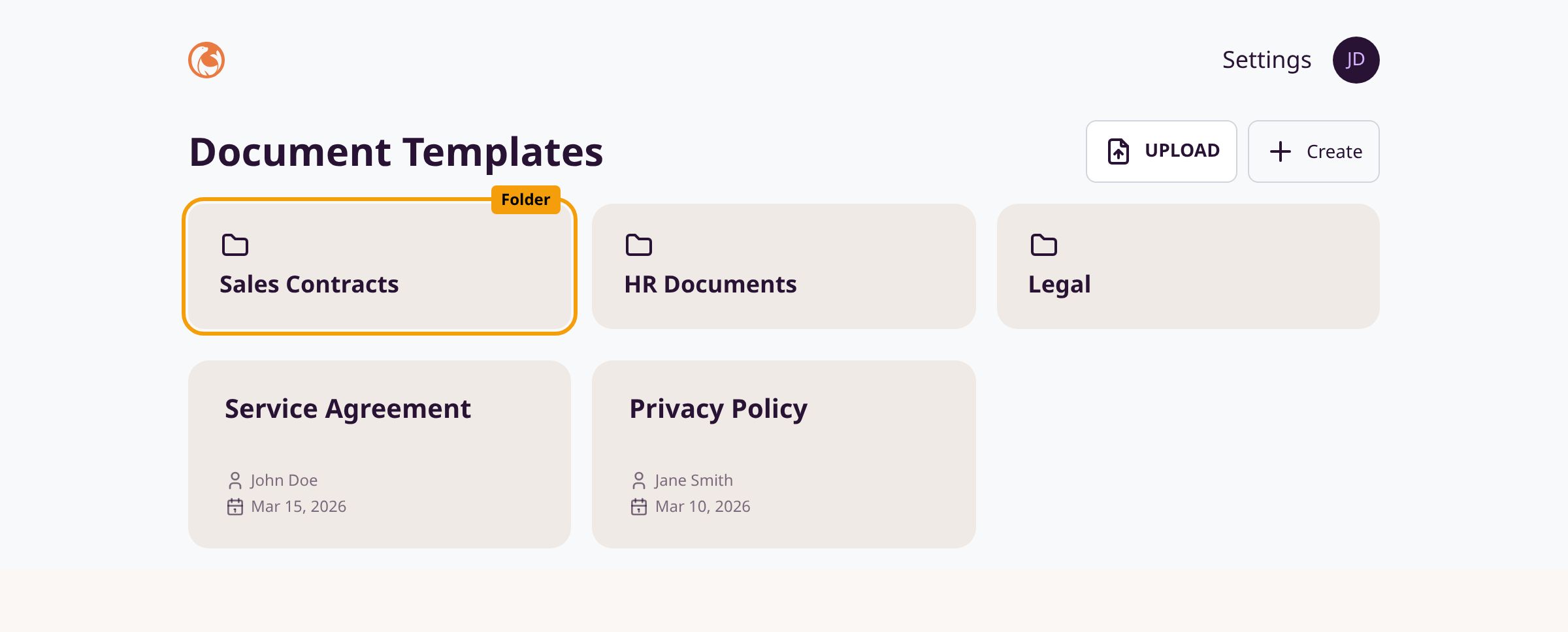
Open the Document Templates dashboard. Folders appear as cards above your templates. Click any folder to open it.
Move a template into a folder
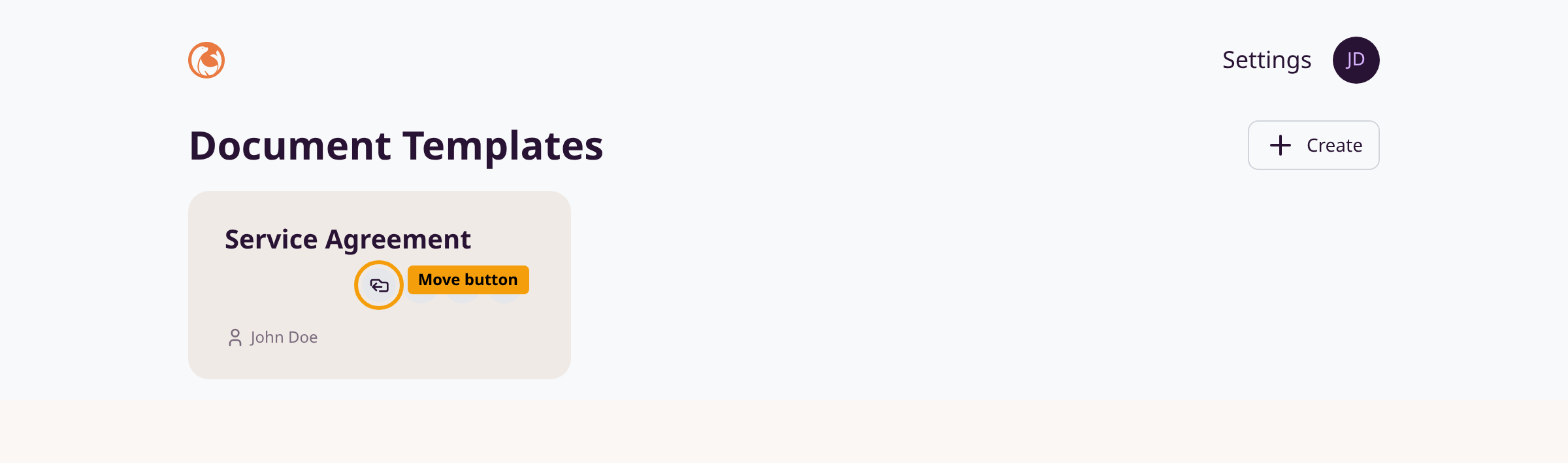
Hover over a template card. Click the Move button (folder arrow icon) on the right side of the card.
Choose or create a folder
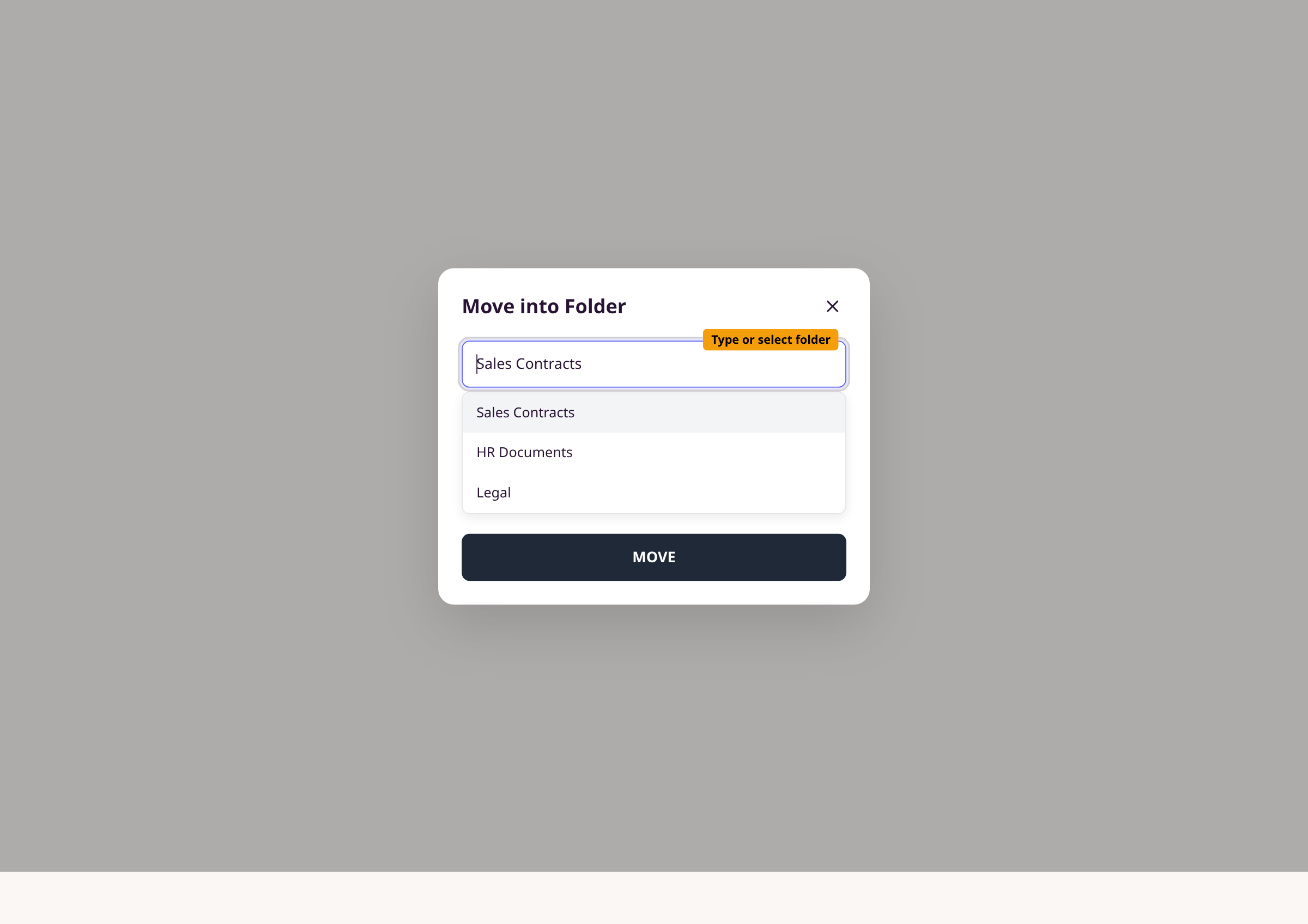
In the Move into Folder modal, type a folder name. Existing folders appear as autocomplete suggestions. Select one, or type a new name to create a folder. Click Move.
Navigate folders and subfolders
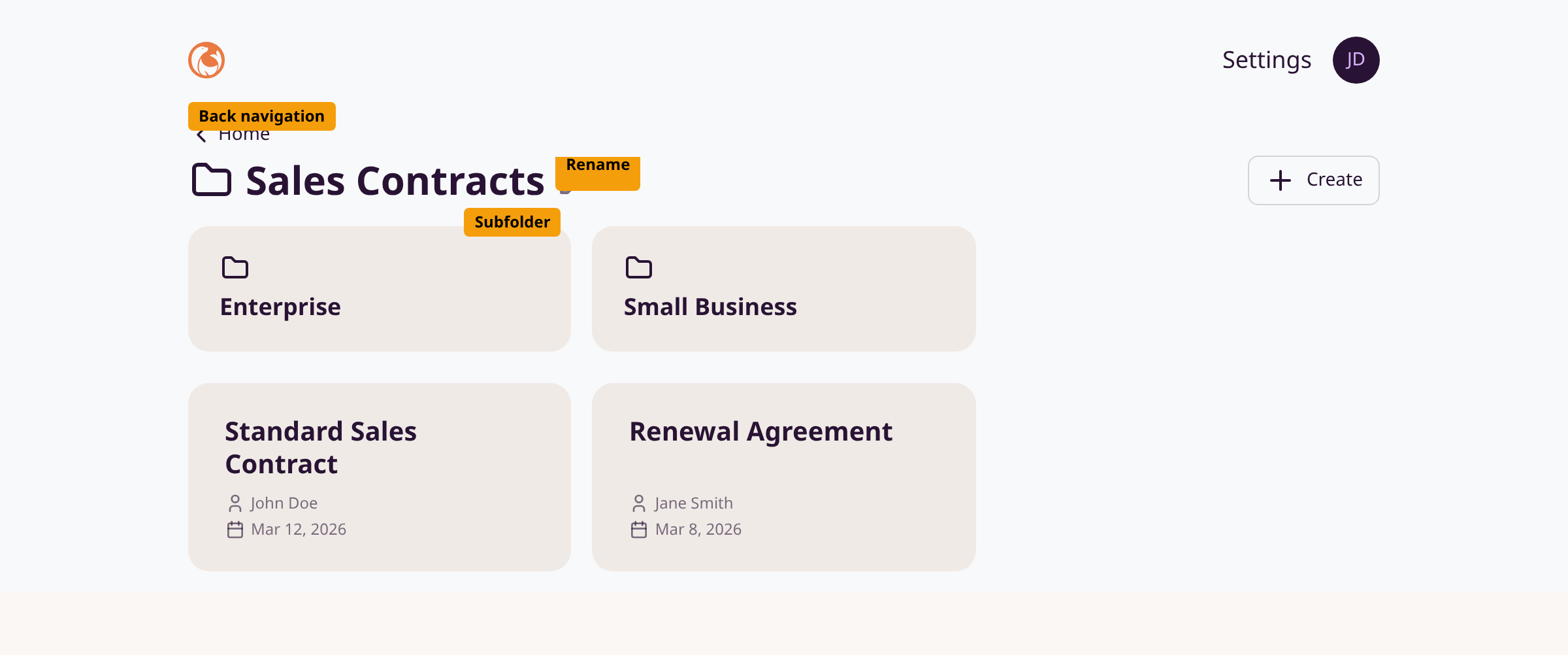
Inside a folder, subfolders display above templates. Click a subfolder to go deeper. Use the back arrow at the top-left to return to the parent folder or Home.
Create a subfolder
From inside a folder, hover a template and click Move. The modal shows the current folder as the parent. Type a subfolder name and click Move.
Rename a folder
Open the folder. Click the pencil icon next to the folder name. Enter the new name and click Rename.
Create a folder via drag and drop
Drag a template card toward the bottom of the dashboard. Drop it on the Create a new folder zone that appears.
Tips
- Folders are created automatically when you move a template into a new folder name.
-
Subfolder names use the format
Parent / Child— DocuSeal nests them automatically. - Only folders containing active templates are visible on the dashboard.
- You can search within a folder using the search bar at the top-right of the folder view.
Summary
Move templates into folders from the dashboard, use subfolders for deeper organization, and rename or navigate folders as your library grows.
Was this article helpful?
Generated automatically by supportpages.io — AI knowledge base software for SaaS teams.
Have a question?
Search our articles, or ask and get an answer straight away.