
How to decline to sign a document
Updated 7 months ago
Browse All
Decline a document you've been asked to sign and provide a reason to the sender.
Prerequisites
- A signing link (received via email or shared link)
- The "Allow to Decline" option must be enabled by the sender
Steps
1
Open the signing form
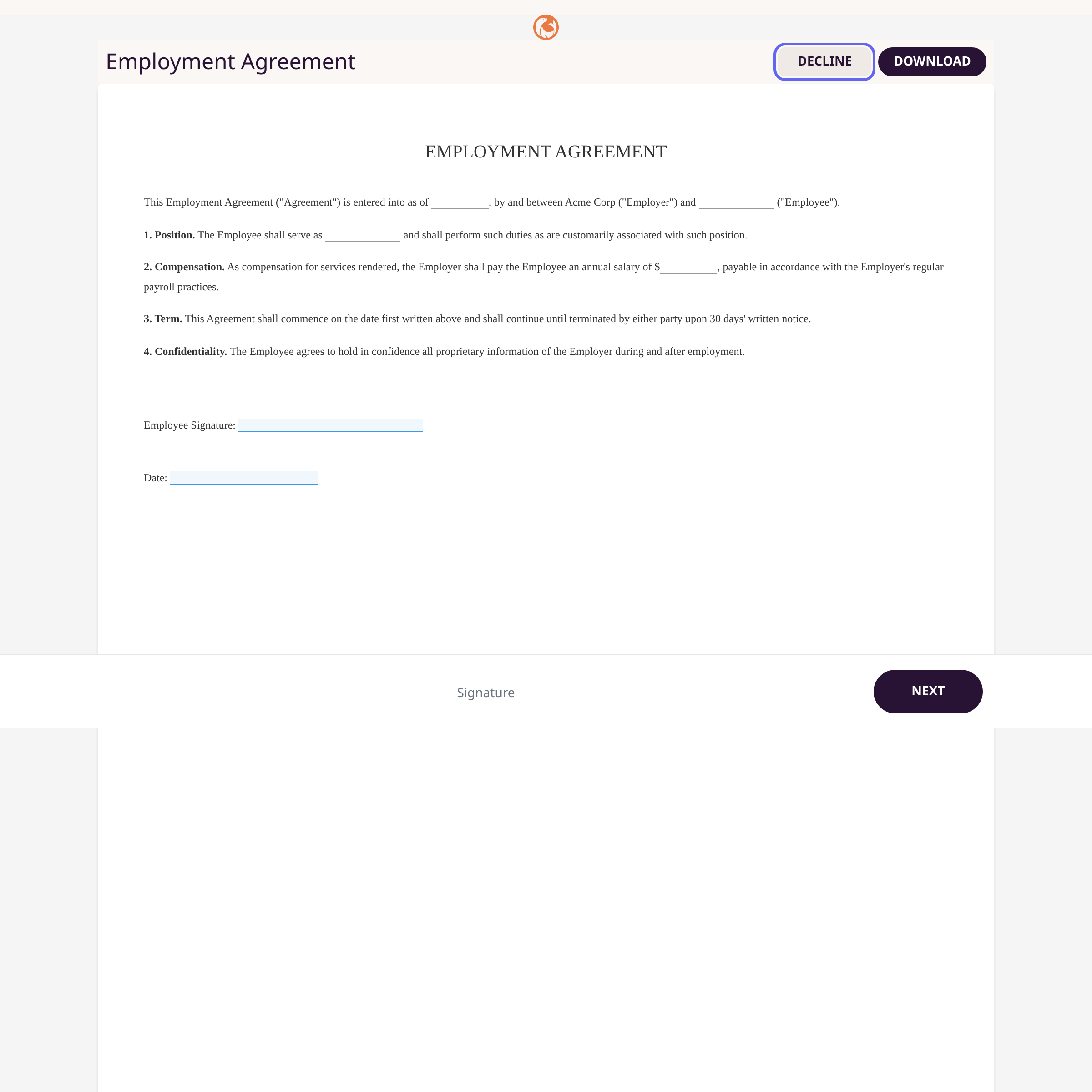
Open the signing link from your email or message. The document appears with form fields to fill out.
2
Click Decline
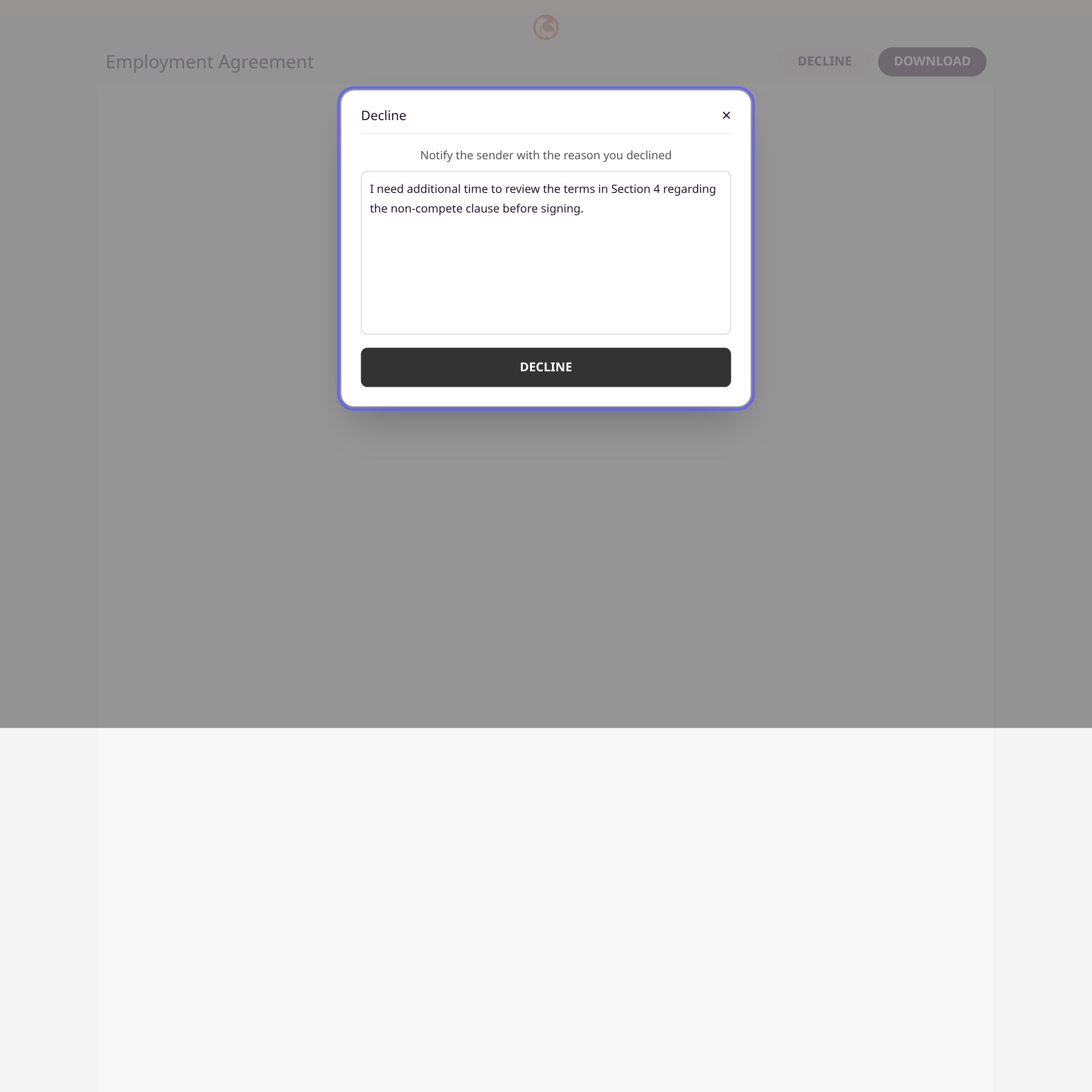
Click Decline in the top-right corner of the form. A modal dialog opens.
3
Enter a reason and confirm
Type your reason in the text area. Click Decline to submit.

4
View the confirmation
The page shows a confirmation that the form has been declined, along with the date and time.
Tips
- The Decline button only appears if the sender has enabled the "Allow to Decline" setting.
- Once declined, you cannot undo the action or re-sign the same request. The sender must create a new submission.
- The sender receives an email notification with your decline reason.
-
A decline triggers a
form.declinedwebhook event if the sender has webhooks configured.
Summary
Click Decline on the signing form, provide a reason, and confirm. The sender is notified by email with your reason.
Was this article helpful?
Thank you for your feedback!
Made by supportpages.io — turning pull requests into automated user documentation.
Have a question?
Search our articles, or ask and get an answer straight away.