
How to use conditional fields to show or hide content based on responses
Updated 7 months ago
Browse All
Configure conditional fields so certain fields only appear when a signer gives a specific answer to an earlier field.
Prerequisites
- An existing template with at least two fields
- DocuSeal Pro plan (conditions are a Pro feature)
Steps
Open field settings
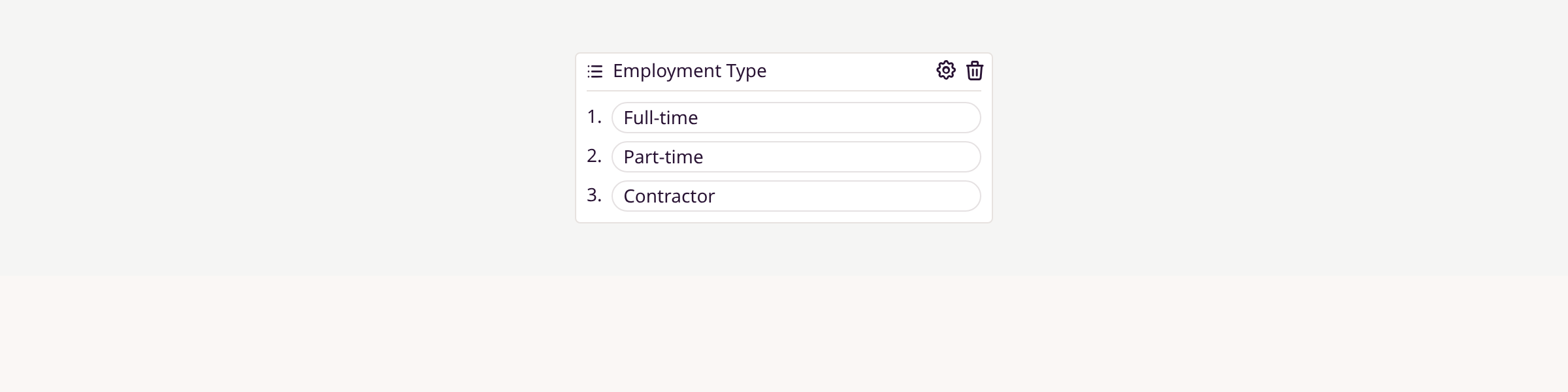
In the template builder, hover over the field you want to conditionally show or hide. Click the gear icon on the right side of the field, then select Condition from the dropdown menu.
Configure the condition
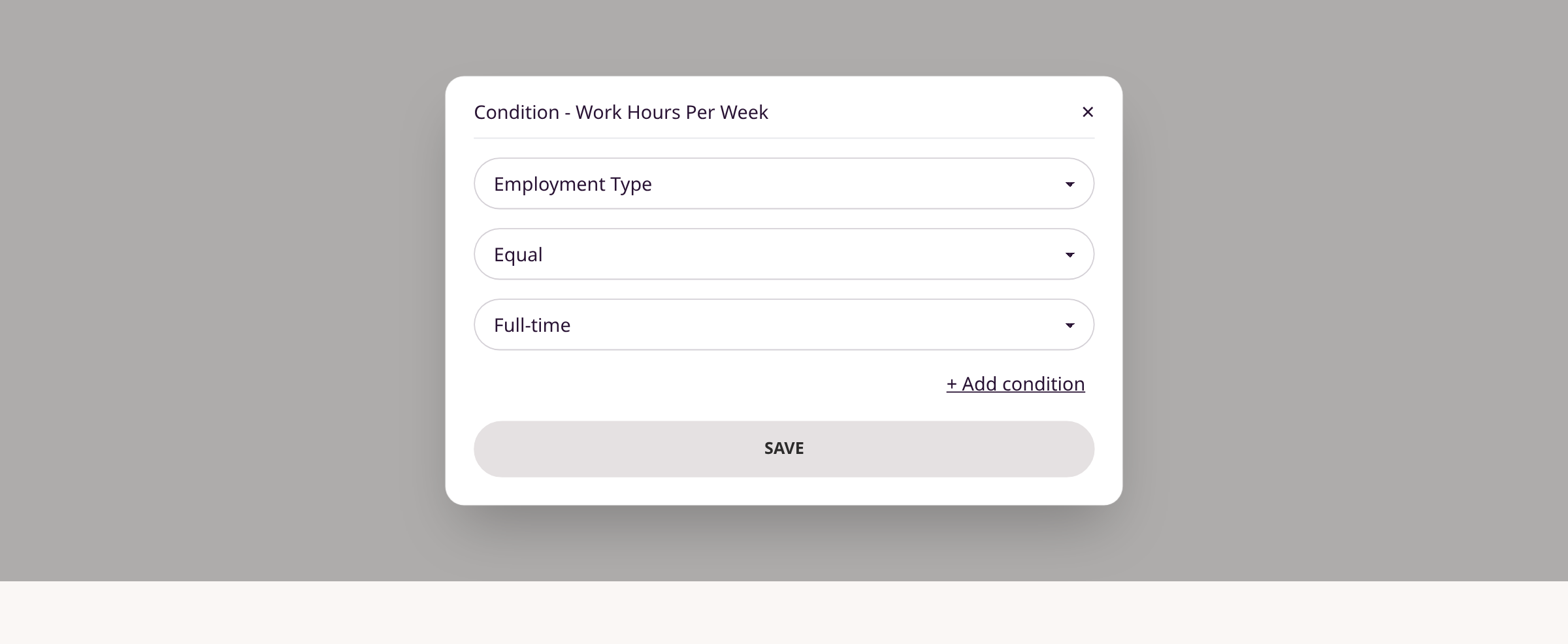
In the Condition modal, select the source field that triggers visibility. Choose an action (e.g., Equal, Not equal, Checked, Not empty). For select/radio fields, pick the specific value to match. Click Save.
Add multiple conditions (optional)
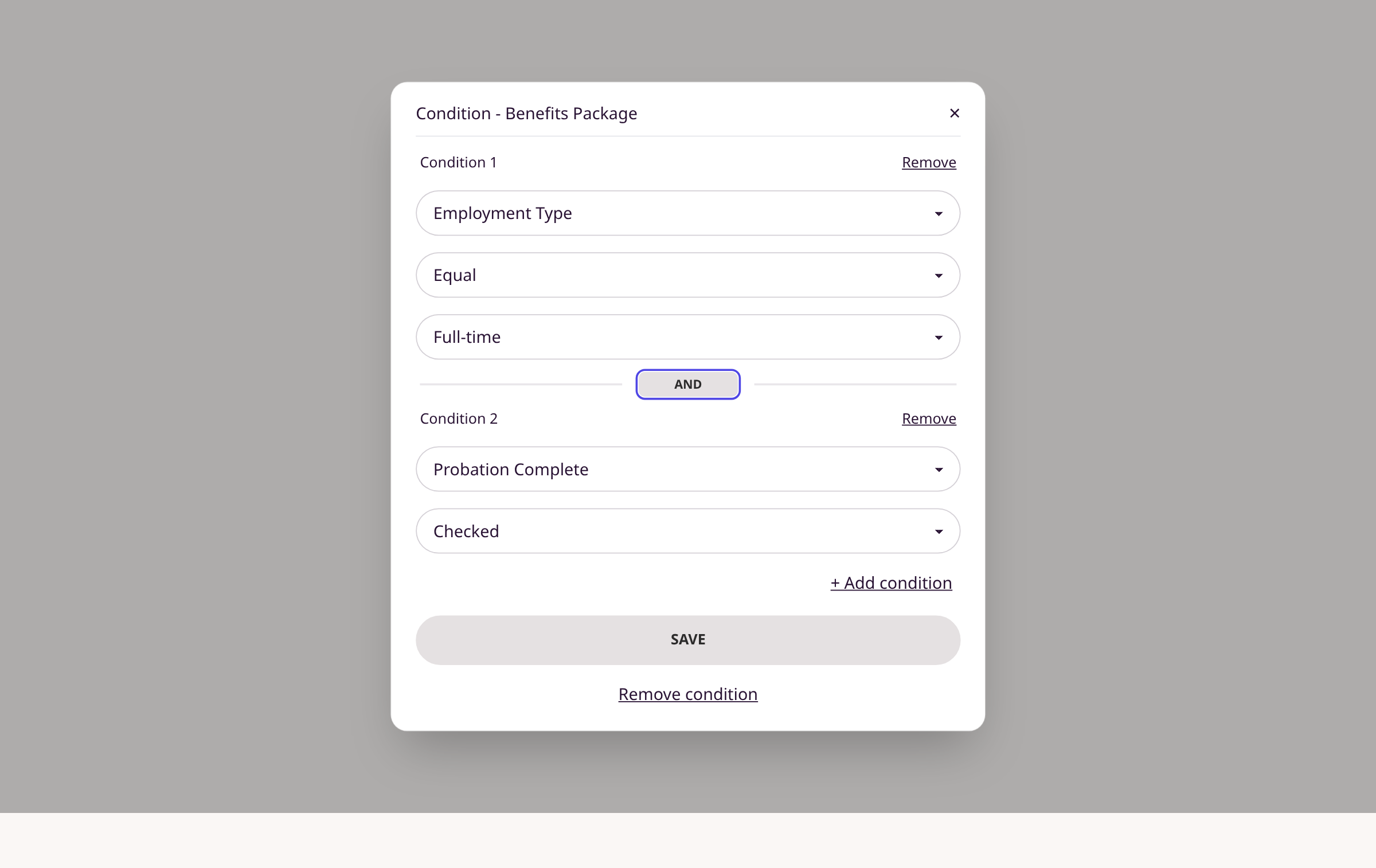
Click + Add condition to add more rules. Toggle the button between conditions to switch between AND (all must match) and OR (any can match). Click Save when done.
Remove a condition
Open the Condition modal for the field. Click Remove condition at the bottom to clear all conditions and make the field always visible.
Tips
- Available actions depend on field type: checkboxes get Checked/Unchecked, select/radio get Equal/Not equal, text fields get Empty/Not empty, number fields also support Greater than/Less than.
- A conditional field cannot reference another field that already has a condition pointing back to it (no circular conditions).
- Heading and stamp field types cannot have conditions applied to them.
- Fields hidden by conditions are automatically disabled during signing, so signers won't be required to fill them.
Summary
Conditional fields let you dynamically show or hide form fields based on signer responses. Set them up in the template builder via the field settings gear icon.
Was this article helpful?
Made by supportpages.io — turning pull requests into automated user documentation.
Have a question?
Search our articles, or ask and get an answer straight away.