
How to open and complete a document sent to you for signature
Updated 7 months ago
Browse All
Click the link in your invitation email, fill in each field, sign, and download the completed document.
Prerequisites
- An invitation email from the sender
- A web browser on any device (desktop, tablet, or phone)
Steps
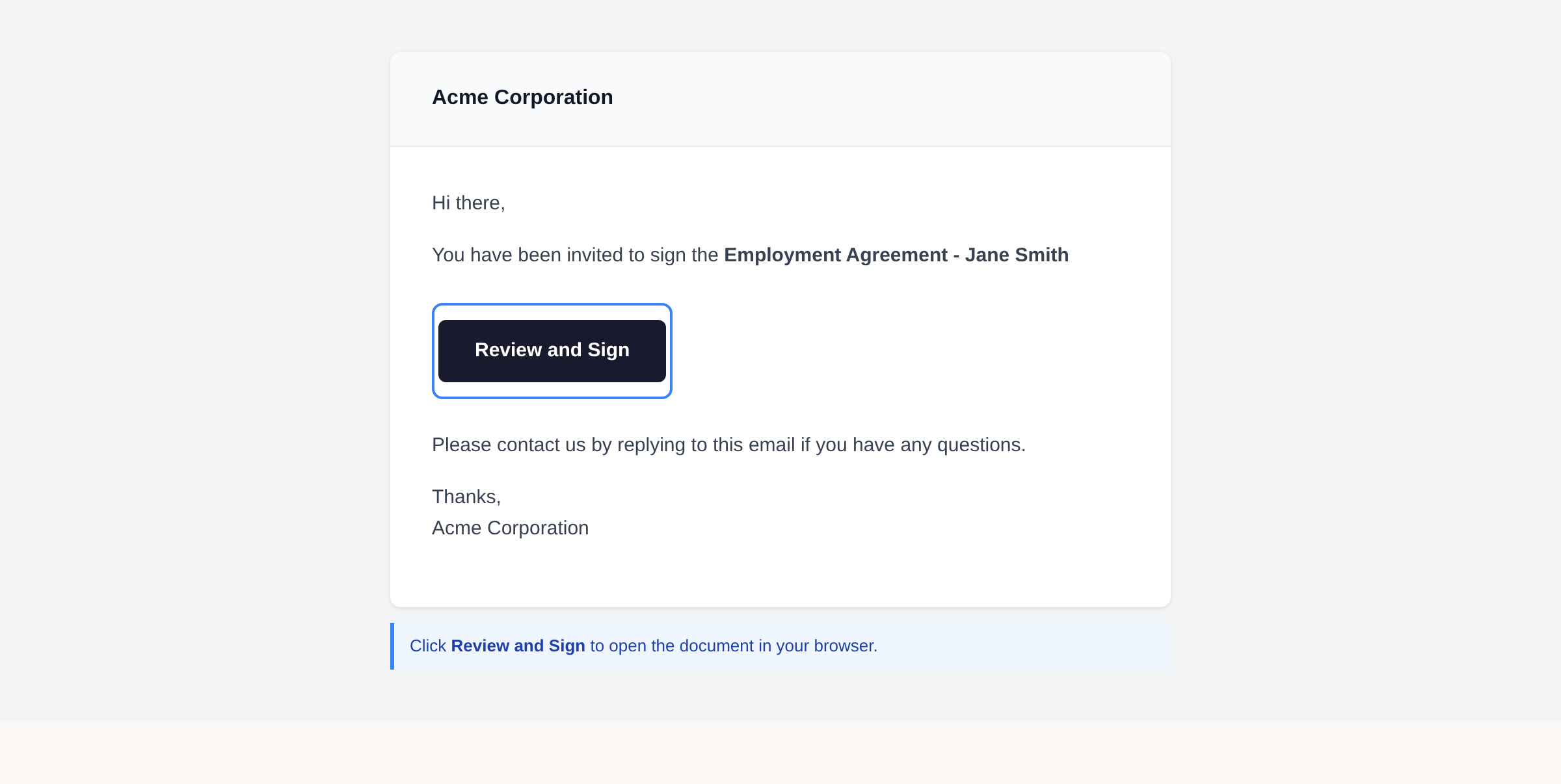
Open the signing link
Find the invitation email from the sender. Click Review and Sign (or Review and Submit for non-signature forms). The document opens in your browser.
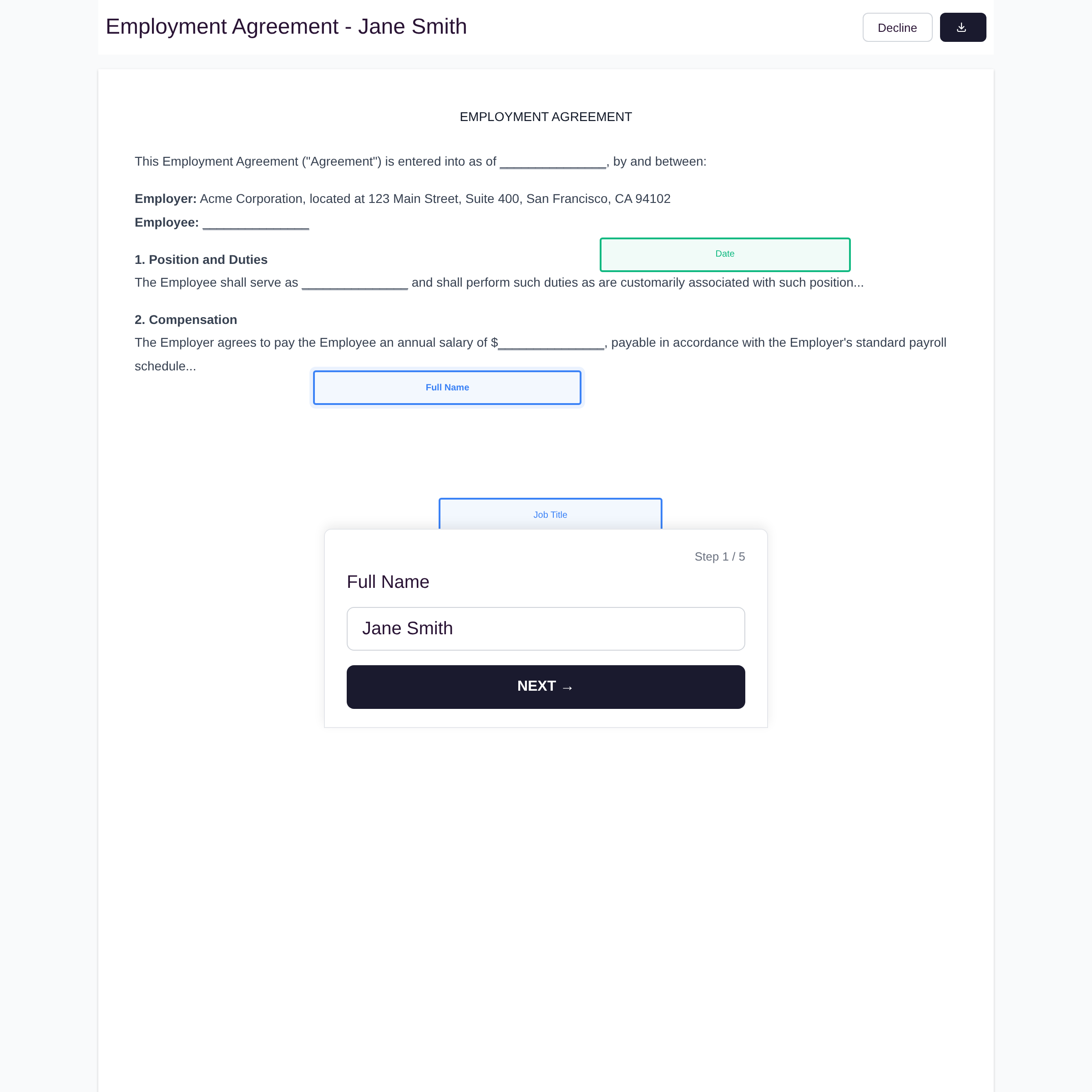
Fill in each field
A panel appears at the bottom with the first field. Type your response and click Next to advance. Fields marked without "(optional)" are required. The document scrolls to highlight each field's location.
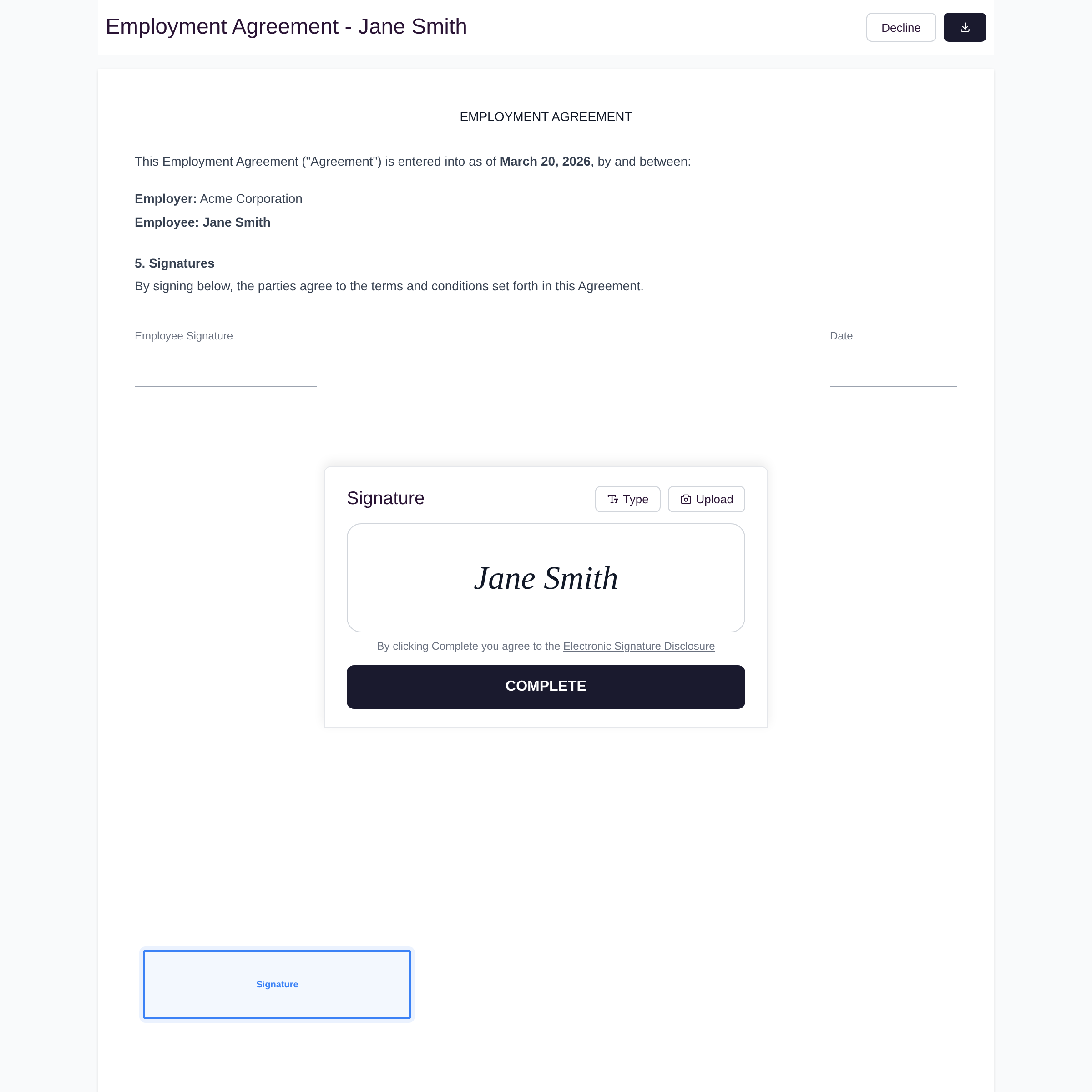
Draw or type your signature
When you reach the Signature field, draw your signature on the canvas, click Type to type it, or click Upload to use an image. Click Complete to finish.
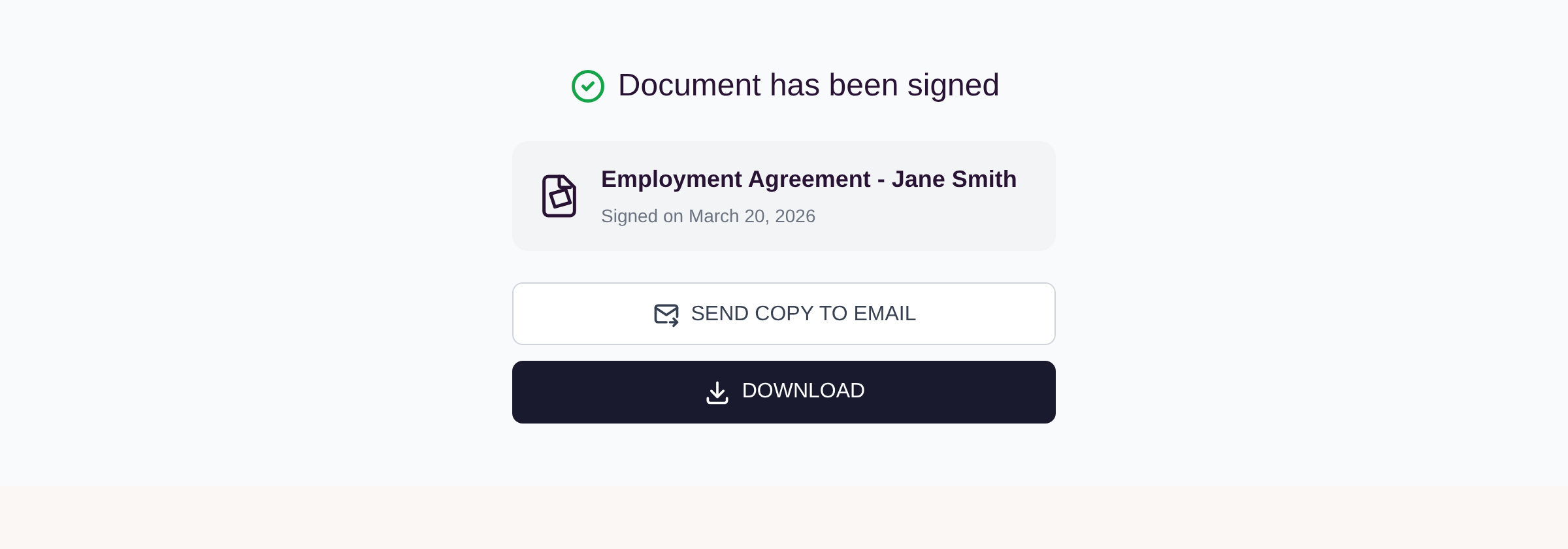
Download or email your copy
A confirmation screen appears. Click Download to save the signed PDF. Click Send copy to email to receive it in your inbox.
Tips
- You can click any highlighted field on the document to jump directly to it.
- Use Decline in the top-right corner if you do not intend to sign.
- The form works on smartphones -- rotate to landscape for a better view of the document.
- If you close the browser before completing, reopen the same link to resume where you left off.
Summary
Open the link from your invitation email, fill in each field using the bottom panel, sign, and download your completed document.
Was this article helpful?
Help centre by supportpages.io — AI-generated documentation for SaaS.
Have a question?
Search our articles, or ask and get an answer straight away.