
How to send a document via SMS instead of email
Updated 7 months ago
Browse All
Enter a phone number instead of an email address so the recipient gets the signing link as a text message.
Prerequisites
- A DocuSeal account with at least one template created
- The recipient's phone number in international format (e.g., +1 555 867 5309)
- SMS sending configured (DocuSeal Pro required)
Steps
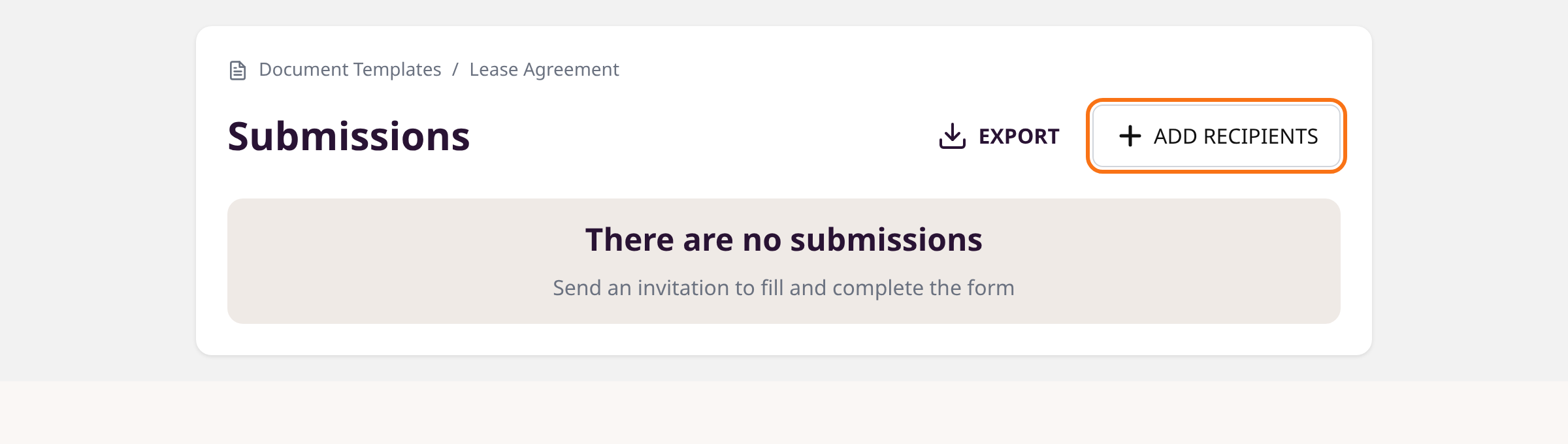
Open your template and click Add Recipients
Go to Document Templates. Click the template you want to send. Click + Add Recipients.
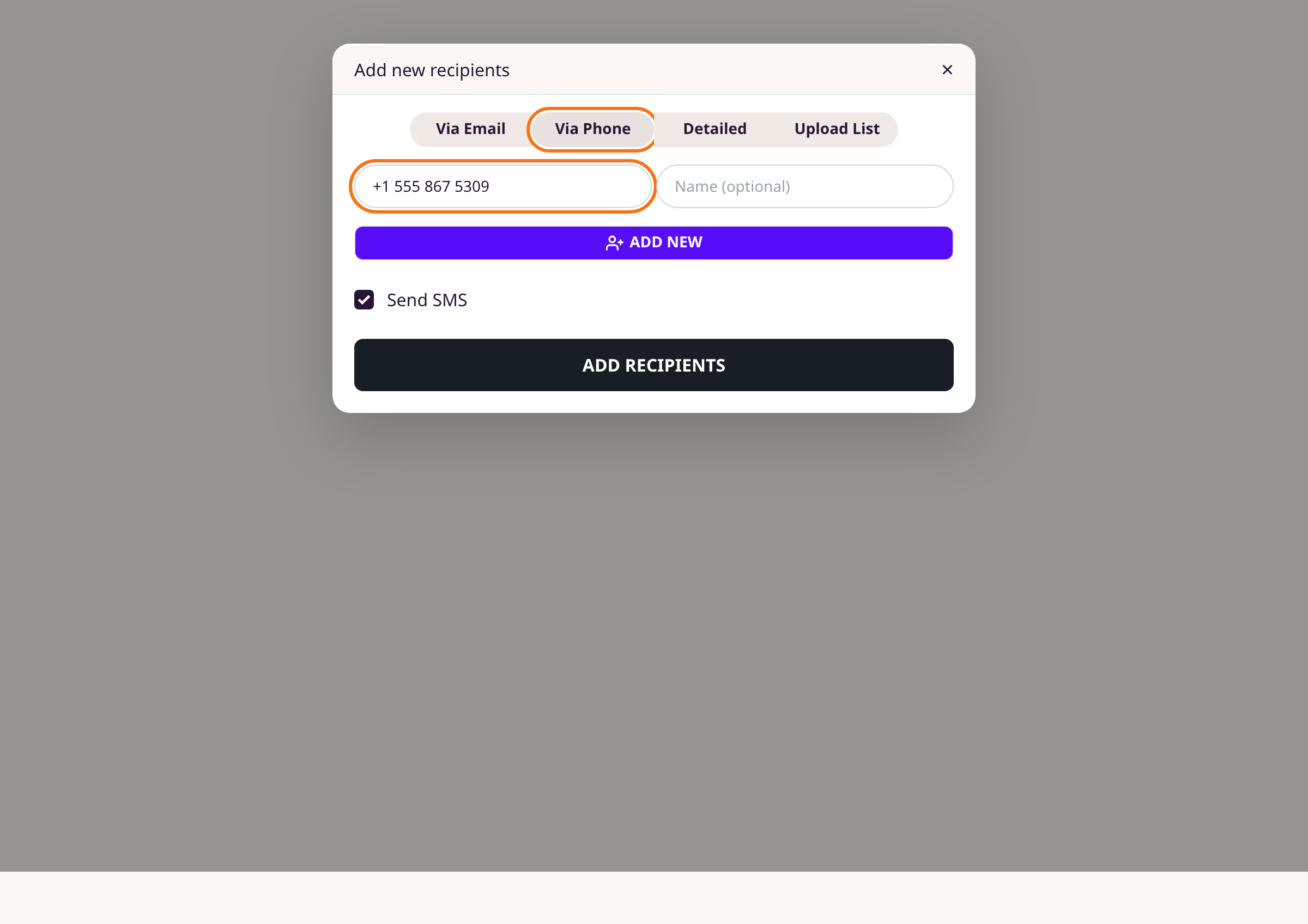
Select the Via Phone tab
In the modal, click the Via Phone tab at the top.
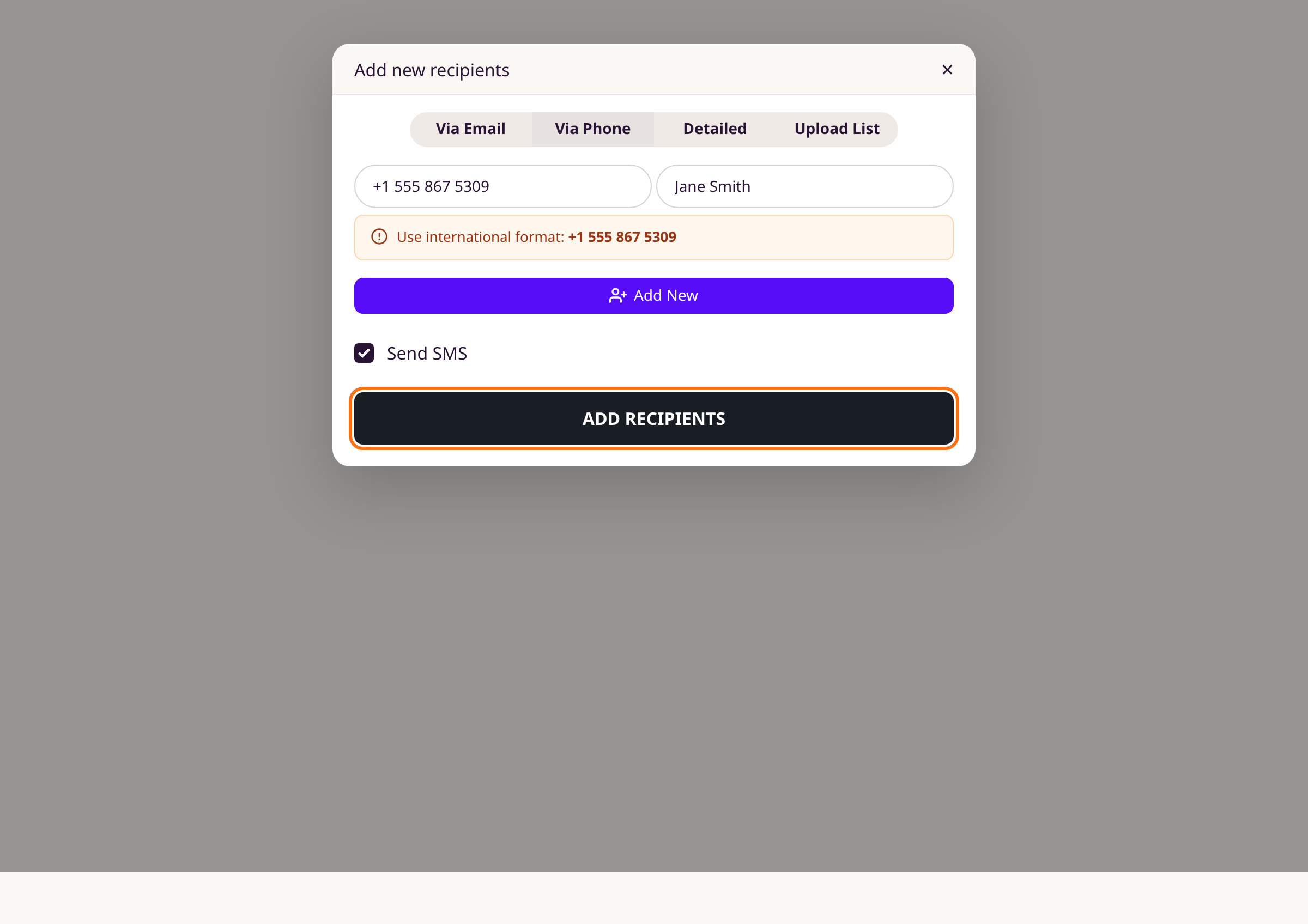
Enter the phone number and send
Type the recipient's phone number in international format (starting with + and country code). Optionally add a name. The Send SMS checkbox is enabled by default — leave it checked. Click Add Recipients.
Tips
- Phone numbers must start with + followed by the country code (e.g., +44 for UK, +1 for US).
- Use the Detailed tab to provide both an email and phone number for the same recipient.
- Click Add New to send to multiple phone numbers at once.
Summary
Select the Via Phone tab when adding recipients, enter the phone number in international format, and click Add Recipients. The signing link is sent as a text message.
Was this article helpful?
Powered by supportpages.io, AI release notes software.
Have a question?
Search our articles, or ask and get an answer straight away.