
How to set an expiration date on a signing request
Updated 7 months ago
Browse All
Configure a default deadline for signing requests so links automatically expire and requests close after the specified period.
Prerequisites
- A DocuSeal account
- At least one template created
Steps
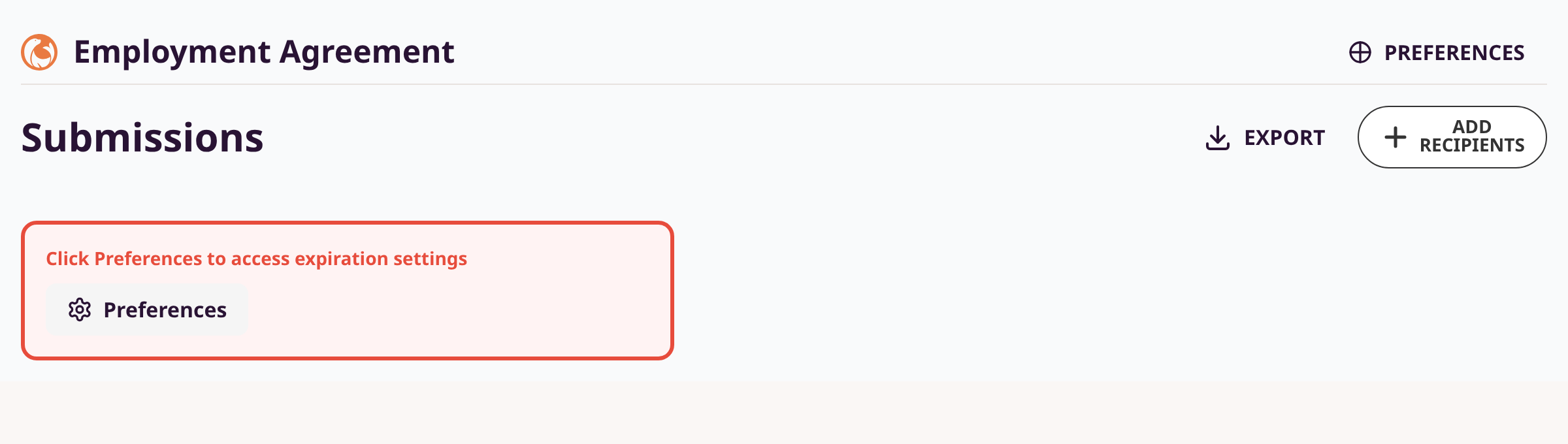
Open template preferences
Navigate to your template. Click the Preferences button (gear icon) in the top-right area of the template page.
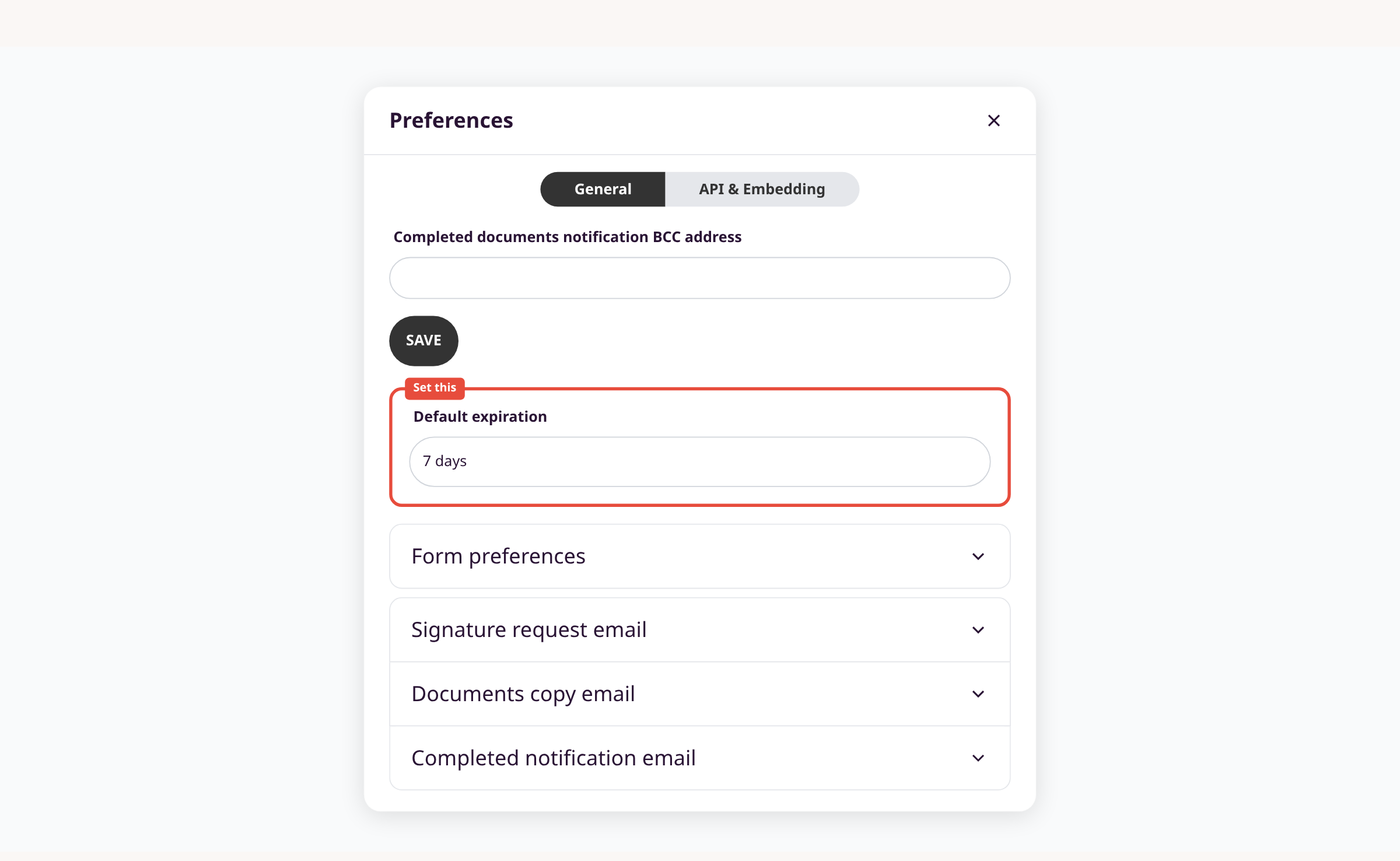
Set the default expiration
In the Preferences modal under the General tab, find the Default expiration dropdown. Select a duration: 1 day through 3 months, or choose Specified date to pick an exact date and time. The setting auto-saves on selection.
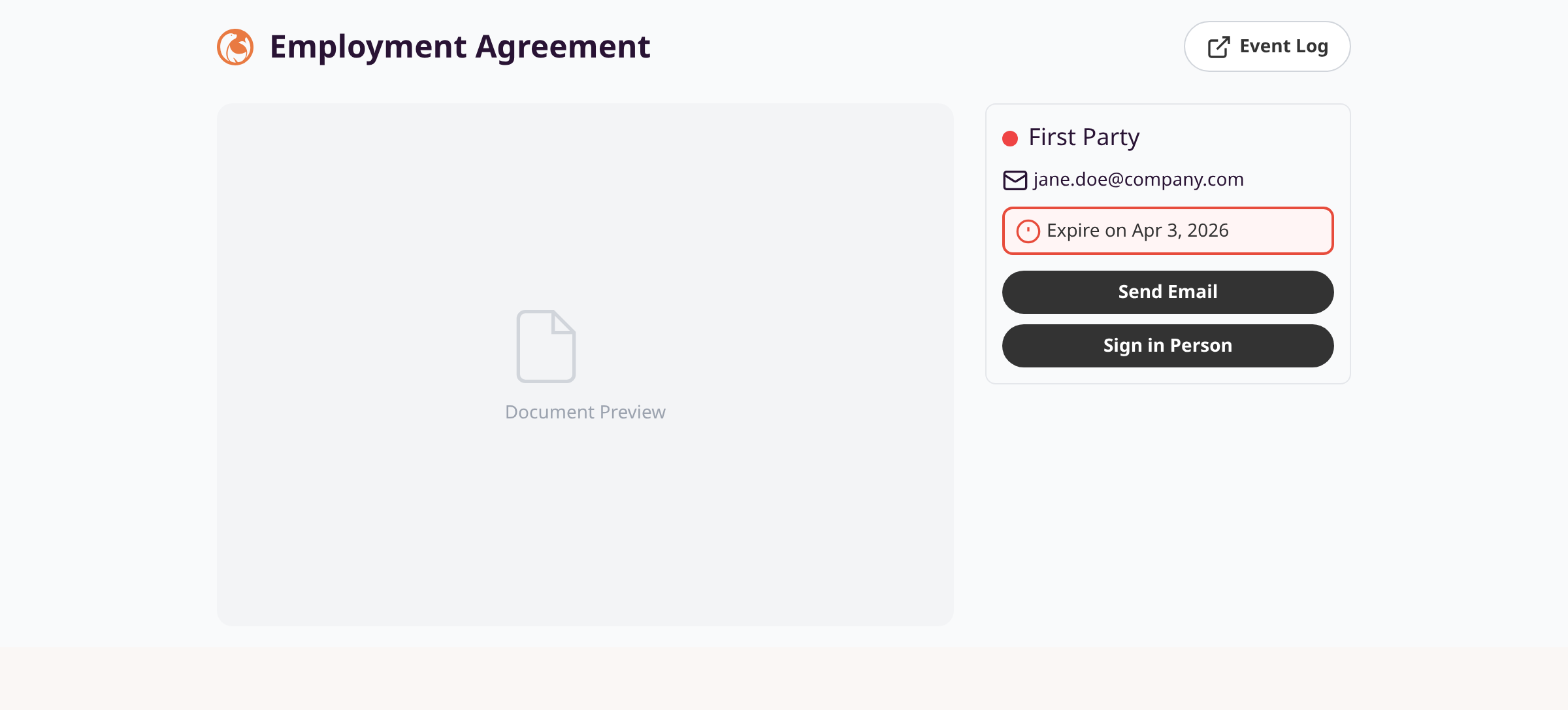
Verify expiration on new submissions
Send a new signing request from this template. On the submission detail page, the signer panel displays the expiration date next to a clock icon (e.g., "Expire on Apr 3, 2026"). After expiry, the status changes to Expired and the signing link shows a "form expired" message.
Remove or change the expiration
Reopen Preferences for the template. Change the Default expiration dropdown to None to disable, or select a different duration. Future submissions use the updated setting.
Tips
- Expiration applies only to new submissions created after the setting is changed. Existing submissions keep their original deadline.
-
When using the API, pass the
expire_atparameter on submission creation to override the template default. - Expired submissions appear under the Expired status filter on the template submissions page.
- Choose Specified date to set a fixed calendar deadline instead of a rolling duration.
Summary
Open template Preferences, select a duration or specific date under Default expiration, and all future signing requests from that template will auto-expire on schedule.
Was this article helpful?
Built with supportpages.io, a help centre generator for developers — written from your codebase.
Have a question?
Search our articles, or ask and get an answer straight away.